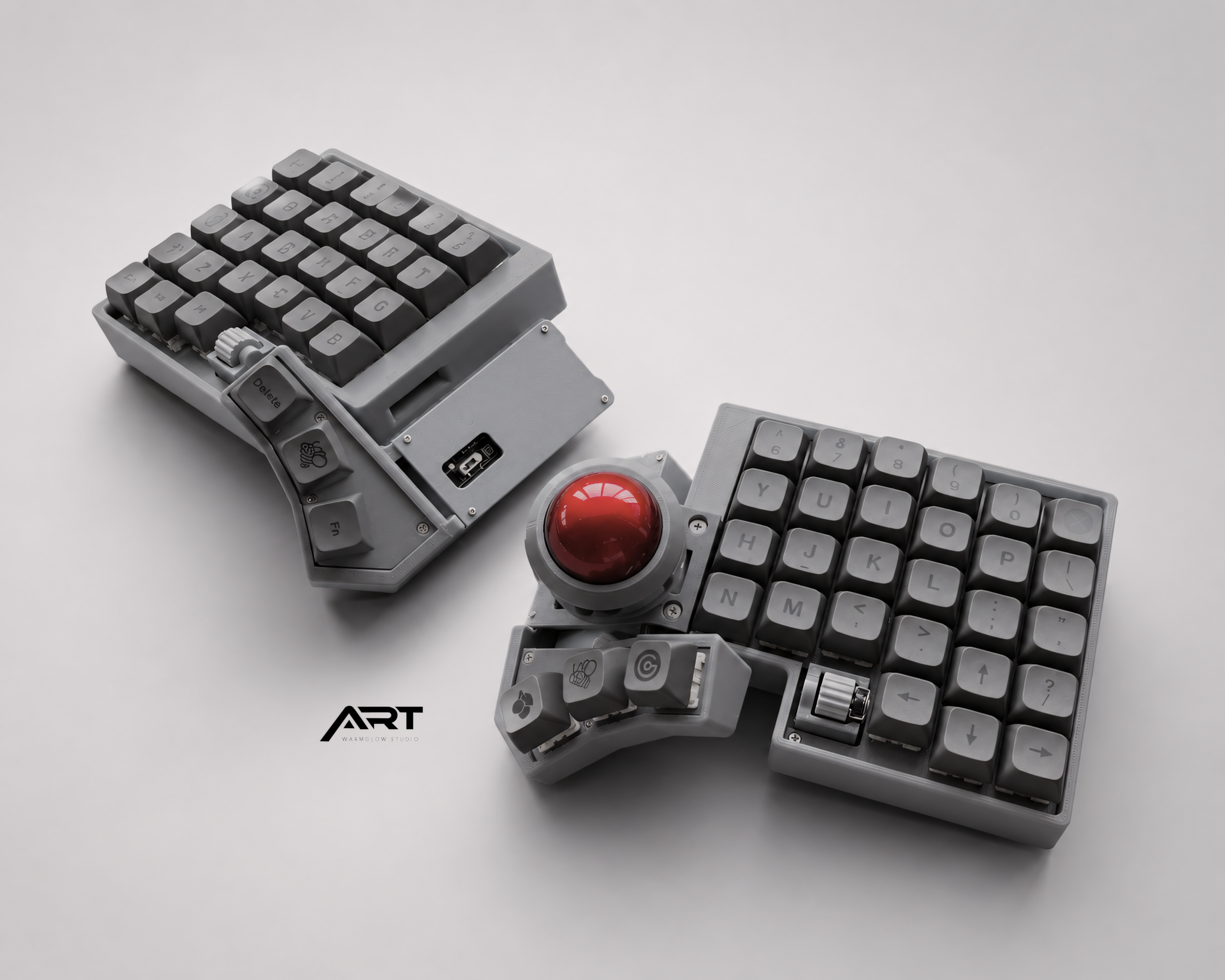
How to Set Up a Trackball on a ZMK Split Keyboard
ZMK is the go-to firmware for wireless split keyboards — but its support for pointing devices like trackballs is newer than QMK's, and the documentation is scattered across GitHub issues, Discord threads, and community wikis. If you've been trying to figure out how trackball support actually works on a ZMK keyboard, this guide pulls it together in one place.
Whether you're buying a prebuilt ZMK trackball split keyboard or building your own, here's what you need to know.
How ZMK Handles Trackball Input
ZMK treats trackballs as HID (Human Interface Device) pointing devices — the same category as a mouse. When the trackball is connected and configured, your computer sees the keyboard as both a keyboard and a mouse simultaneously. No special drivers are required on Mac, Windows, or Linux.
The trackball communicates with the keyboard's microcontroller via SPI (Serial Peripheral Interface) — a standard communication protocol used for sensors. The firmware reads the ball's movement data and converts it into cursor movement, scroll, and click inputs that get sent to your computer over Bluetooth.
This all happens transparently. From your computer's perspective, the cursor is just moving — it doesn't know or care whether the input came from a mouse, a trackpad, or a trackball embedded in a keyboard.
Prebuilt vs. DIY: What's Different
If you're using a prebuilt ZMK trackball split keyboard, the trackball is already configured and working out of the box. The firmware is preloaded with the correct sensor settings, cursor speed, and button mappings. You pair the keyboard via Bluetooth and the trackball works immediately — no setup required.
The rest of this guide is most relevant if you want to customize the default behavior, understand what's happening under the hood, or troubleshoot an issue.
If you're building your own ZMK trackball keyboard, you'll need to configure the trackball sensor in your keymap's config files before flashing firmware. The most common trackball sensors used in split keyboards are the PMW3360 and PMW3389 — high-precision optical sensors that ZMK supports through its pointing device driver system.
Key Behaviors to Configure
Whether you're customizing a prebuilt keyboard or building from scratch, these are the main trackball behaviors you can control in ZMK:
Cursor Speed (CPI)
CPI (counts per inch) controls how far the cursor moves relative to how far you roll the ball. Higher CPI = faster cursor movement with less ball movement. Lower CPI = more precise control but slower cursor travel.
Most trackball split keyboards ship with a CPI in the range of 400–800, which works well for everyday productivity use. If the cursor feels too slow or too fast, adjusting CPI is the first thing to change.
In ZMK, CPI is set in the keyboard's config file:
CONFIG_PMW3360_CPI=600
Replace PMW3360 with your sensor model if different. After changing this value, you need to recompile and reflash the firmware.
Scroll Mode
Scroll mode lets you use the trackball to scroll instead of move the cursor. You activate it by holding a designated key while rolling the ball — rolling up scrolls up, rolling down scrolls down.
In your ZMK keymap, scroll mode is typically bound to a key using the &msc (mouse scroll) behavior or a custom layer that switches the trackball from cursor mode to scroll mode while held.
On most prebuilt trackball split keyboards, scroll mode is pre-configured on a thumb key. Check your keyboard's default keymap documentation for which key activates it.
Click Buttons
Left click, right click, and middle click are mapped as standard mouse buttons in ZMK using the &mkp behavior:
-
&mkp LCLK— left click -
&mkp RCLK— right click -
&mkp MCLK— middle click
These can be assigned to any key on any layer in your keymap, giving you full flexibility over where the click buttons live relative to your typing position.
Snipe Mode (Precision Mode)
Some ZMK trackball configurations include a snipe mode — a temporary CPI reduction activated by holding a key, which slows the cursor down for precise positioning. This is useful for tasks that require accurate clicking on small targets.
Snipe mode is not a built-in ZMK behavior but is implemented by switching to a layer that changes the active CPI value. If your prebuilt keyboard includes this feature, it will be documented in the keymap.
The Split Keyboard Complication: Central and Peripheral Halves
Split keyboards running ZMK have two halves — a central half that connects to your computer via Bluetooth, and a peripheral half that connects wirelessly to the central half.
The trackball is typically on one half. Which half it's on affects how it communicates with your computer:
Trackball on the central half — the most straightforward configuration. The trackball connects directly to the central microcontroller, which handles both keyboard input and trackball input before sending everything to your computer.
Trackball on the peripheral half — more complex. The peripheral half sends trackball data to the central half over the inter-half wireless connection, and the central half relays it to your computer. This works in ZMK but has historically had some latency compared to a central-side trackball. ZMK's peripheral pointing device support has improved significantly and is stable for most users.
Most prebuilt trackball split keyboards place the trackball on the right half, which acts as either the central half or is configured to relay pointing data efficiently.
Bluetooth and Trackball: What to Expect
ZMK's Bluetooth implementation sends keyboard and mouse HID reports over the same Bluetooth connection. For most users, trackball response over Bluetooth feels smooth and responsive — BLE (Bluetooth Low Energy) has low enough latency for cursor control in everyday productivity use.
If you notice cursor lag, a few things to check:
Distance from the computer — Bluetooth range varies by environment. Moving the keyboard closer to your computer or Bluetooth receiver can reduce latency.
Interference — 2.4GHz Wi-Fi and Bluetooth operate in overlapping frequency ranges. If you're in an environment with heavy Wi-Fi traffic, some interference is possible.
Battery level — ZMK's power management aggressively reduces power consumption when the keyboard is idle. If the cursor feels slow to respond when you first start using it after a pause, the keyboard may be waking from a sleep state. This typically resolves within a second.
For users who need the most responsive trackball experience possible, a 2.4G wireless keyboard with VIAL firmware (rather than ZMK Bluetooth) eliminates Bluetooth entirely and provides a more consistently immediate response.
Customizing Your ZMK Trackball Keyboard
If your prebuilt keyboard ships with a GitHub repository for its ZMK config (most do), you can customize the keymap by:
- Forking the repository to your own GitHub account
- Editing the keymap file to change key bindings, layer behavior, or CPI settings
- Letting GitHub Actions compile the firmware automatically
- Downloading the compiled firmware and flashing it to your keyboard
This process doesn't require installing any software locally — GitHub does the compilation in the cloud. The ZMK documentation at zmk.dev covers the flashing process for each supported keyboard.
If you're not comfortable with this process, the default keymap on a well-configured prebuilt keyboard handles the vast majority of everyday use cases without any modification.
Frequently Asked Questions
Does the trackball work immediately after pairing via Bluetooth? Yes, on a prebuilt keyboard. The firmware is pre-configured with all sensor settings. Pair the keyboard and both the keyboard and trackball function immediately.
Can I adjust CPI without reflashing firmware? On most ZMK keyboards, CPI changes require reflashing. Some keyboards implement runtime CPI adjustment through key bindings, but this is not a standard ZMK feature and depends on the specific keyboard's firmware implementation.
Why does my cursor sometimes jump or skip? Cursor jumping is usually caused by debris on the trackball sensor lens. Remove the ball and clean the sensor window with a dry cotton swab. Also clean the ball itself — skin oils accumulate over time and affect tracking quality.
Can I use the trackball and a regular mouse at the same time? Yes. Your computer sees the trackball as a separate HID mouse device. You can use both simultaneously — whichever device you move last controls the cursor.
Is ZMK trackball support as good as QMK? For everyday use, yes. ZMK's pointing device support has matured significantly. The main difference is that QMK with VIA/VIAL allows real-time CPI adjustment and more granular configuration through a graphical interface, while ZMK requires reflashing for most configuration changes. For users who set their preferences once and don't change them, this difference doesn't matter in practice.
The Bottom Line
ZMK trackball support works well for everyday productivity use on a prebuilt keyboard — no setup required beyond pairing. The main configuration options (CPI, scroll mode, click buttons) are pre-configured on quality prebuilt keyboards and work out of the box.
If you want to customize beyond the defaults, ZMK's config system is approachable with a GitHub account and the keyboard's documentation. The ZMK community at zmk.dev and on Discord is active and helpful for specific configuration questions.
At Artkeeb, all ZMK trackball keyboards ship with firmware preloaded and the trackball calibrated. If you have questions about your specific keyboard's default keymap or want guidance on customizing it, contact us directly.

Leave a comment
This site is protected by hCaptcha and the hCaptcha Privacy Policy and Terms of Service apply.