How to Use VIAL: A Beginner's Guide to Remapping Your Keyboard
One of the best things about a QMK-based mechanical keyboard is that every key is programmable. But for most people, the idea of editing firmware config files and flashing new software onto a keyboard sounds intimidating.
VIAL solves this. It's a free desktop app that lets you remap every key, create layers, and set up macros through a visual interface — no coding, no command line, no reflashing required. Changes apply to your keyboard in real time.
This guide walks through everything you need to know to get started with VIAL, from installation to building your first custom layer.
What Is VIAL?
VIAL is an open-source application and firmware that extends QMK with a real-time graphical configuration interface. Where standard QMK requires you to edit code and recompile firmware to change your keymap, VIAL lets you make changes instantly through a desktop app that communicates directly with your keyboard.
It's similar to VIA — another popular QMK configuration tool — but with some additional features, including a more reliable auto-detection system, tap-dance configuration in the UI, and combo support.
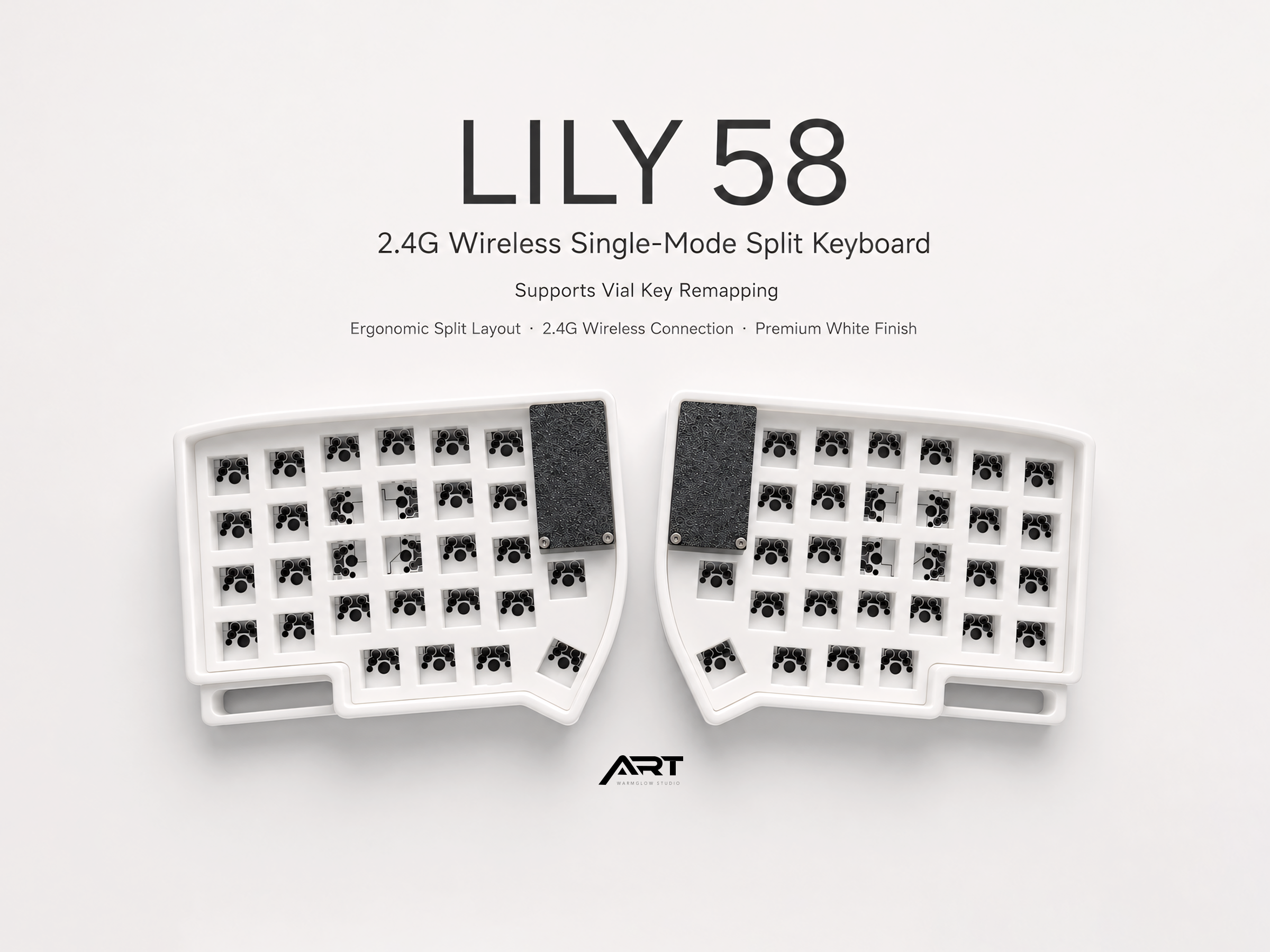
VIAL works with any keyboard that has VIAL-compatible firmware installed. Most modern QMK keyboards ship with either VIA or VIAL support. Artkeeb keyboards with QMK firmware ship with VIAL pre-installed — no additional setup required.
Installing VIAL
VIAL is available for Mac, Windows, and Linux.
- Go to get.vial.today
- Download the version for your operating system
- Install it like any other application
That's it. No drivers, no accounts, no configuration before you open it.
Connecting Your Keyboard
- Plug your keyboard into your computer via USB-C
- Open the VIAL application
- Your keyboard should appear automatically in the interface
If VIAL doesn't detect your keyboard immediately, check that your keyboard has VIAL firmware installed (not just QMK or VIA). Most Artkeeb wired keyboards and 2.4G wireless keyboards ship with VIAL. If you're unsure, check the product listing or contact us.
For 2.4G wireless keyboards: plug the USB receiver into your computer, then open VIAL. The keyboard connects through the receiver and appears in VIAL the same way a wired keyboard would.
For ZMK Bluetooth keyboards: VIAL does not work with ZMK. ZMK uses a different configuration system. See the ZMK documentation for keymap customization on Bluetooth keyboards.
Understanding the VIAL Interface
When VIAL opens and detects your keyboard, you'll see a visual layout of all your keys. This is your base layer — the default state of the keyboard when no layer keys are held.
The main areas of the interface:
Key layout display (top): A visual map of your keyboard. Click any key to select it, then assign a new function using the key picker below.
Key picker (bottom): A categorized list of all available key functions. Categories include Basic (standard keys), Media, Layers, Macros, Tap-Dance, Quantum (advanced QMK behaviors), and more.
Layer tabs: Along the top of the key layout, you'll see numbered layer tabs (Layer 0, Layer 1, Layer 2, etc.). Layer 0 is your base layer. You can switch between layers to view and edit each one.
Remapping a Key
Remapping a key in VIAL takes about five seconds:
- Click the key you want to change in the layout display
- The key highlights to show it's selected
- Click the new function you want from the key picker below
- The change applies immediately — no save button, no reflashing
That's the entire process. The change is stored in the keyboard's memory and persists even when you unplug the keyboard and plug it into a different computer.
Example: Moving Caps Lock to Escape
Many keyboard users — especially programmers — prefer to have Escape where Caps Lock is. In VIAL:
- Click the Caps Lock key in the layout display
- In the key picker, find Escape under Basic keys
- Click Escape
Done. Caps Lock is now Escape on your keyboard, on any computer you plug it into.
Understanding Layers
Layers are the most powerful feature of a programmable keyboard. A layer is like a transparent sheet placed over your base layout — when a layer is active, the keys defined on that layer override the base layer keys.
How layers work:
- Layer 0 is always active by default
- When you hold a layer key, a higher-numbered layer becomes active
- Keys defined on the active layer take effect; keys left empty fall through to the layer below
Common layer uses:
Navigation layer: Hold a thumb key to turn H/J/K/L (or another cluster) into arrow keys. This lets you navigate text without moving your hand to the arrow key area.
Number/Symbol layer: On compact keyboards without a number row, a layer puts numbers and symbols on the home row. Even on keyboards with a number row, many users prefer a layer-based number pad for faster data entry.
Function layer: F1-F12, media controls, screenshot shortcuts — all accessible without a dedicated function row.
System layer: Keyboard settings, RGB controls, Bluetooth profile switching.
Setting Up Your First Layer
Here's how to create a basic navigation layer that gives you arrow keys on the home row:
Step 1: Define your layer trigger In Layer 0, find the key you want to use as your layer trigger — typically a thumb key. Click it in VIAL, then in the key picker find the Layers category and select MO(1) (Momentary Layer 1). This key will activate Layer 1 while held.
Step 2: Switch to Layer 1 Click the Layer 1 tab at the top of VIAL. The layout display now shows Layer 1, which starts empty (all keys fall through to Layer 0).
Step 3: Assign navigation keys Click the H key position. In the key picker, find the Left arrow key and click it. Repeat for J (Down), K (Up), and L (Right).
Step 4: Test it Hold your layer trigger key and press H, J, K, L. They should now act as arrow keys. Release the layer trigger and they return to their normal letters.
You've just created a navigation layer. The same process works for any set of keys on any layer.
Tap-Hold: Getting Two Functions from One Key
Tap-hold is a QMK behavior that assigns different functions to a key depending on whether you tap it quickly or hold it. VIAL makes tap-hold easy to configure through its interface.
Common tap-hold uses:
Home row modifiers: Assign Shift, Ctrl, Alt, and Cmd/Win to your home row keys. Tap the key for its normal letter; hold it to use it as a modifier. This is popular on compact keyboards where dedicated modifier keys are limited.
Layer-tap: Tap a key for one function, hold it to activate a layer. Common for thumb keys — tap for Space, hold for Navigation Layer.
To set up a tap-hold in VIAL, click the key you want to configure, then look for LT() (Layer Tap) or MT() (Mod Tap) in the Quantum section of the key picker. VIAL will prompt you to enter the tap action and the hold action separately.
Macros
VIAL's macro editor lets you assign a sequence of keystrokes to a single key. Uses include:
- Typing your email address with one keypress
- Common code snippets
- Multi-key shortcuts simplified to one key
- Text expanders for frequently typed phrases
To create a macro:
- Click the Macros tab in VIAL
- Click an empty macro slot
- Type the keystroke sequence you want the macro to output
- Assign the macro to a key by selecting
M0,M1, etc. from the key picker
Saving and Portability
VIAL stores your keymap directly on the keyboard's internal memory. This means:
- No software needs to be installed on the computer you're using
- Your custom layout works on any computer you plug the keyboard into
- Unplugging and replugging the keyboard doesn't reset your layout
- You can use the keyboard in BIOS/boot environments because the keymap is in hardware
You can also export your keymap from VIAL as a .vil file and reimport it later — useful for backing up your layout or sharing it with someone else who has the same keyboard.
Common Questions
Do I need to keep VIAL open while I type? No. Once you've made your changes, close VIAL and use the keyboard normally. The keymap is stored on the keyboard itself. You only need VIAL open when you want to make changes.
Will my changes be lost if I update the firmware? Firmware updates can overwrite the keymap stored in the keyboard's memory. Before updating firmware, export your keymap from VIAL as a backup. After updating, reimport the .vil file to restore your layout.
Can I use VIAL on multiple computers? Yes. Because the keymap is stored on the keyboard, it travels with the keyboard. Open VIAL on any computer to make changes; the layout is the same everywhere you use it.
What's the difference between VIAL and VIA? Both are graphical QMK configuration tools. VIAL is a fork of VIA with additional features (better auto-detection, tap-dance UI, combo support) and doesn't require manually loading a keyboard definition file for supported keyboards. If your keyboard supports VIAL, use VIAL — it's generally the easier experience.
Getting the Most Out of VIAL
A few practices that help:
Start simple. Make one or two changes at a time and live with them for a few days before changing more. It's easy to over-customize a layout and create a setup that's hard to remember or use consistently.
Use layers for navigation first. Adding arrow keys to a home-row layer is the highest-value change for most users and the most immediately useful thing VIAL enables.
Back up your keymap. Once you have a layout you like, export it from VIAL and save the file somewhere safe. This takes thirty seconds and saves significant time if you ever need to restore it.
Check the community. r/ErgoMechKeyboards and the QMK Discord have extensive discussions about keymap design. Looking at what experienced users do with their layouts provides a lot of inspiration.
At Artkeeb, all wired and 2.4G wireless keyboards ship VIAL-ready. Plug in, open VIAL, and start customizing.

Leave a comment
This site is protected by hCaptcha and the hCaptcha Privacy Policy and Terms of Service apply.