Article: Is a Split Keyboard Worth It? An Honest Guide for Beginners
Is a Split Keyboard Worth It? An Honest Guide for Beginners
If you've been typing for hours every day and your wrists or shoulders have started to complain, you've probably stumbled across split keyboards at some point. They look unusual. They're more expensive than a regular keyboard. And they come with a learning curve that nobody really warns you about upfront.
So — are they actually worth it?
The honest answer: for most people who type a lot, yes. But the why matters, and so does picking the right one. This guide covers everything a beginner needs to know before buying their first split keyboard.
What Is a Split Keyboard, Exactly?
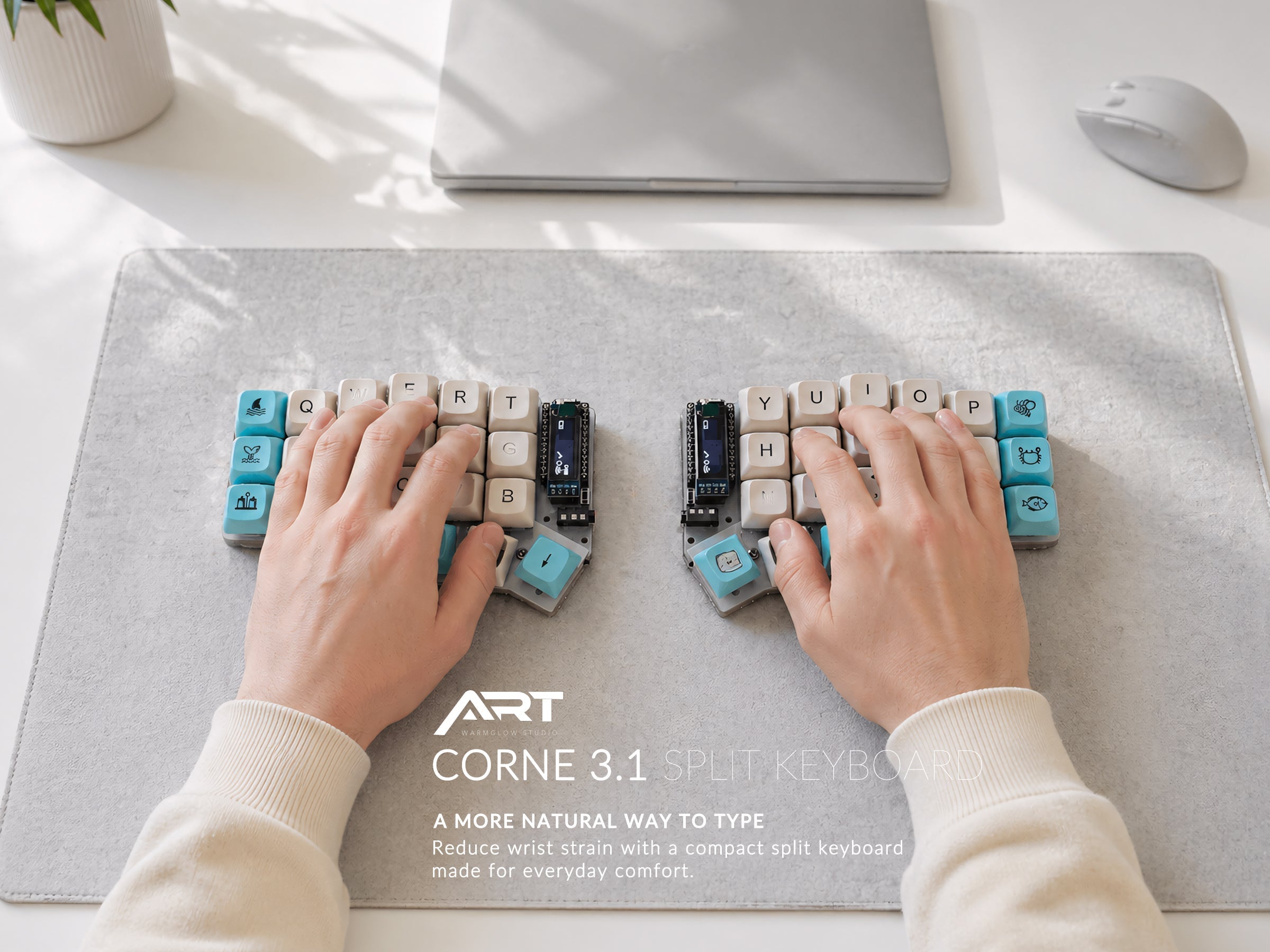
A split keyboard is exactly what it sounds like: a keyboard that's divided into two separate halves. Instead of one long board that forces your hands to angle inward, you place each half where your hands naturally want to rest.
Most people sit at a desk with their elbows at roughly shoulder width, but then type on a keyboard that's only about 35cm wide. That forces your wrists to rotate inward and your shoulders to hunch forward — often for 6–10 hours a day.
A split keyboard lets you set the two halves as wide apart as you want. Your shoulders stay open. Your wrists stay straight. Your hands don't have to travel as far to reach keys.
That's the core idea. Everything else — wireless, programmable layers, trackballs, different firmware — is built on top of that foundation.
Who Actually Benefits from a Split Keyboard?
Split keyboards make the most sense for people who:
- Type for more than 4 hours a day (programmers, writers, data entry, customer support)
- Have noticed wrist, shoulder, or neck discomfort during or after typing sessions
- Work at a desk most of the day and want a more comfortable long-term setup
- Are interested in customizing their keyboard layout and shortcuts
They're less necessary if you only type occasionally, or if your current setup is already comfortable.
The Learning Curve — How Long Does It Actually Take?
This is the question most people worry about, and it's worth being direct: there is a real adjustment period.
For most beginners, the first few days feel slow and awkward. You'll hit the wrong keys. Your typing speed will drop. This is completely normal — your muscle memory is built around the traditional staggered layout, and split keyboards typically use a columnar layout (keys aligned in straight columns rather than offset rows).
The good news: most people adapt faster than they expect. Many users report getting back to close to their normal typing speed within a week of daily use. After two to three weeks, the split layout starts to feel natural.
One important thing to know: switching back to a regular keyboard doesn't get harder as you use a split keyboard more. You can use both — the muscle memory for each layout can coexist.
Split Keyboard Types: Which One Is Right for You?
Not all split keyboards are the same. Here's a breakdown of the main categories:
Prebuilt vs. DIY Kit
Prebuilt keyboards arrive fully assembled, flashed with firmware, and ready to use. You plug them in and start typing. This is the right choice for most beginners — no soldering, no configuring firmware from scratch, no debugging.
DIY kits (also called barebone kits) require you to install your own switches and sometimes solder components. They're for people who enjoy the building process and want full control over every part.
If you just want a better typing experience without a weekend project, go prebuilt.
Wired vs. Wireless
Wired keyboards use a USB-C connection and are completely plug-and-play. They typically use QMK or VIAL firmware, which makes remapping keys straightforward.
Wireless keyboards connect via Bluetooth or 2.4G receiver. They use ZMK firmware (for Bluetooth) or a 2.4G wireless protocol. The advantage is a cleaner desk with no cables. The tradeoff is that wireless setup requires a bit more familiarity with the firmware.
For complete beginners, a wired keyboard with QMK/VIA support is the most straightforward starting point. For a cleaner desk setup, 2.4G wireless is nearly as simple as wired — you just plug in a small receiver.
With Trackball vs. Without
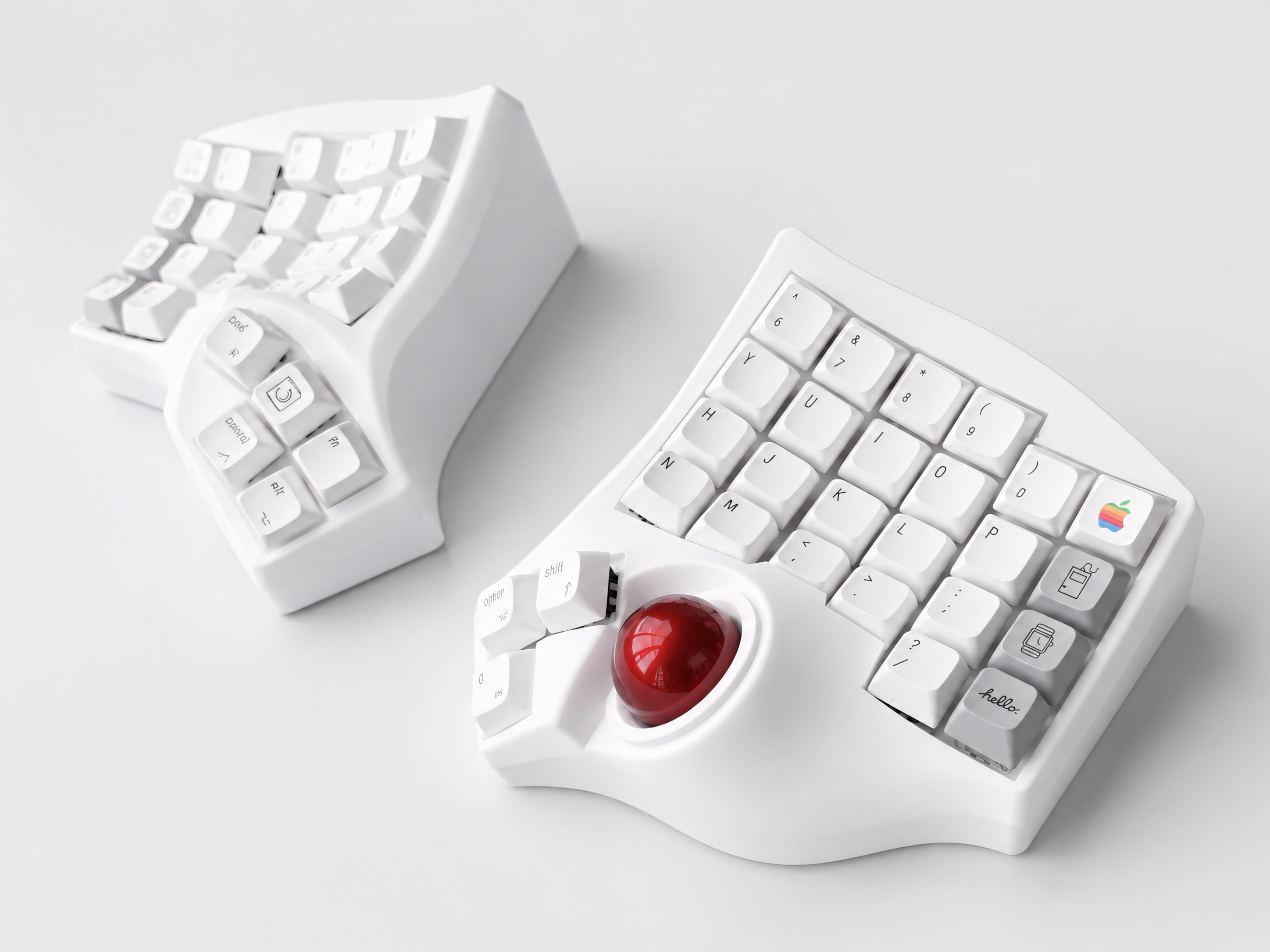
Some split keyboards include a built-in trackball, allowing you to control your cursor without reaching for a separate mouse. If you spend a lot of time switching between keyboard and mouse, a trackball split keyboard can dramatically reduce how much your hands move throughout the day.
The adjustment to trackball takes slightly longer than the keyboard itself, but most users find it worth it for the reduced desk clutter and arm movement.
Compact vs. Full Layout
Compact split keyboards (like the Corne with 42 keys, or the Sofle with 58 keys) use programmable layers to access all the keys you need — you hold a layer key and the function row, number row, or navigation cluster appears on the same physical keys.
Full-layout split keyboards (like the Alice 3 with 111 keys) keep all keys accessible without layer switching. They're larger, but require zero relearning of your key locations.
If the idea of learning layers sounds like too much, start with a full layout. If you're open to a more minimal setup, a compact keyboard with layers can be very efficient once you're used to it.
What Firmware Should You Know About?
You'll see these terms a lot when shopping for split keyboards:
QMK — The most widely used open-source keyboard firmware. Extremely powerful and customizable. Works with a graphical configurator called VIA, which lets you remap keys in your browser without touching any code.
VIAL — Similar to QMK, but with an even simpler real-time remapping interface. Great for beginners who want to customize without any technical friction.
ZMK — Used for wireless (Bluetooth) split keyboards. More complex than QMK/VIA for beginners, but supports wireless communication between the two halves without any cable.
For most new users, a keyboard with QMK + VIA or VIAL is the easiest starting point for customization.
Common Beginner Questions
Will it fix my wrist pain? A split keyboard can significantly reduce the strain that causes repetitive stress injuries, particularly the inward wrist rotation and shoulder tension that comes from typing on a standard keyboard. Many users report noticeable improvement in comfort within weeks. However, it's not a medical device — if you have existing injuries, consult a professional alongside making ergonomic changes.
Do I need to learn to touch type? You don't need to be a perfect touch typist, but if you frequently glance at the keyboard to find keys, the transition will take longer. The columnar layout on most split keyboards is more logical than the traditional staggered layout, and many people find it easier to learn proper touch typing on a split keyboard.
Can I use it with my laptop? Yes. All wired split keyboards connect via USB-C and are recognized as standard keyboards by any laptop or desktop running Windows, Mac, or Linux. Wireless versions connect the same way any Bluetooth or 2.4G device would.
Is it loud? That depends on the switches, not the keyboard itself. Most prebuilt split keyboards come with linear or tactile switches that are relatively quiet. If you need a very quiet keyboard for an office, look for models that include silent switches.
What to Look for in Your First Split Keyboard
Here's a simple checklist for beginners:
- Prebuilt — don't start with a kit if you want to just use it
- Hot-swap sockets — lets you change switches later without soldering
- QMK/VIA or VIAL support — makes key remapping accessible without coding
- Your preferred connectivity — wired for simplicity, 2.4G for a cleaner desk
- A layout size that matches your comfort level — full layout if you're unsure, compact if you're ready to explore layers
The Bottom Line
A split keyboard is worth it if you spend significant time typing and want a more comfortable, sustainable setup. The learning curve is real but shorter than most people expect. The long-term payoff — less wrist strain, better posture, a cleaner desk — is meaningful.
The best first split keyboard is one that's prebuilt, programmable, and doesn't require you to be a firmware expert out of the box.
At Artkeeb, every keyboard ships fully assembled and tested. Whether you want a compact wireless setup, a full-layout board, or a trackball keyboard that replaces your mouse entirely, there's an option that fits where you are right now — and room to grow from there.

Leave a comment
This site is protected by hCaptcha and the hCaptcha Privacy Policy and Terms of Service apply.