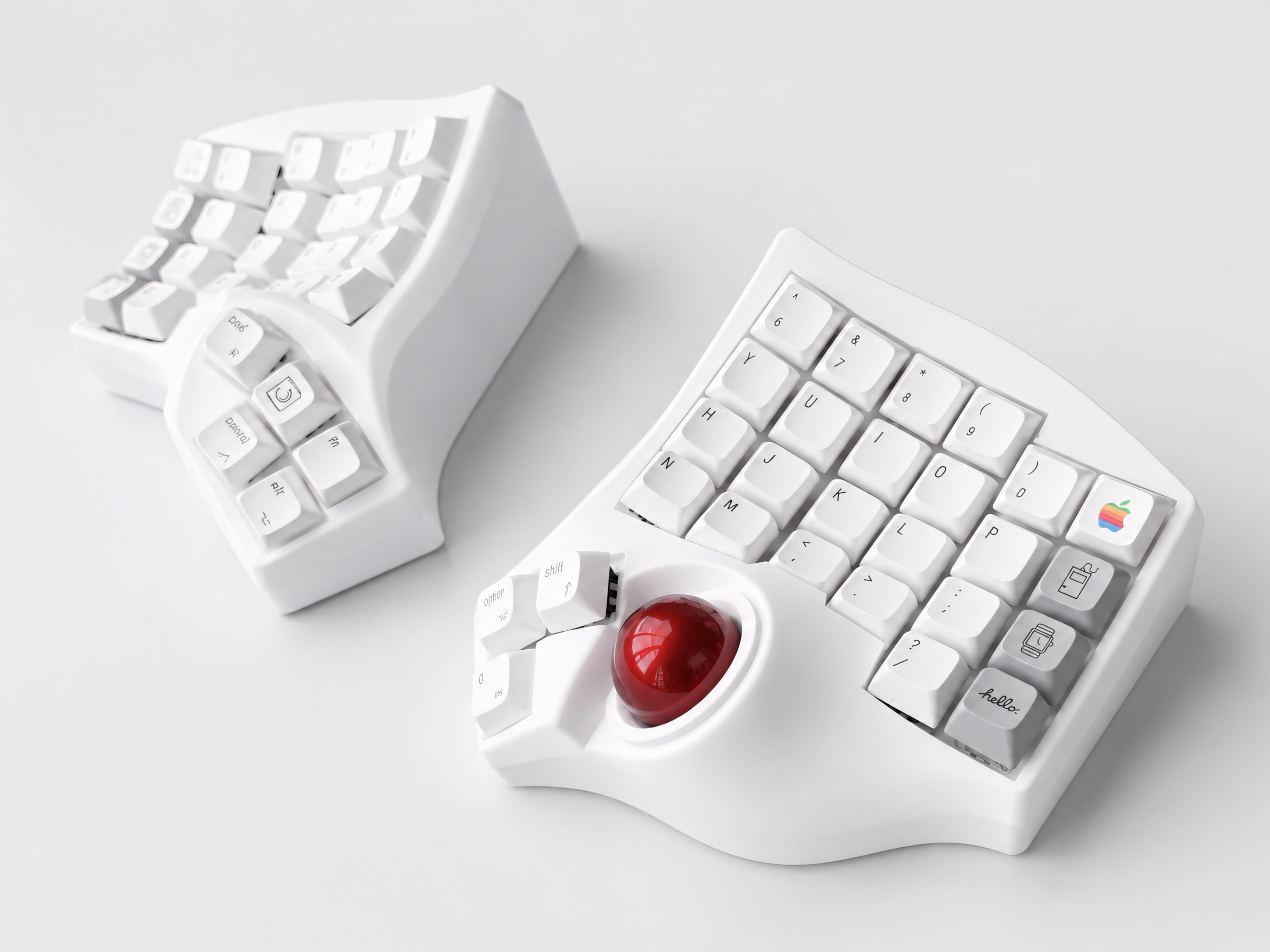
Split Keyboard with Trackball: The Complete Guide to Replacing Your Mouse
If you spend most of your workday switching between keyboard and mouse, you already know how much that movement adds up. Reach for the mouse, come back to the keyboard, reach again. Over an eight-hour day, that's hundreds of small arm movements — and over months and years, that repetitive reaching is one of the most common causes of shoulder and elbow strain in desk workers.
A split keyboard with a built-in trackball solves this in a way that nothing else quite does. Your cursor control lives directly on the keyboard. Your hands never have to leave the home position.
This guide explains how trackball split keyboards work, who they're best for, and what to expect when you make the switch.
Why a Trackball, Not a Regular Mouse?
A standard mouse requires you to move your entire arm to control the cursor. Over time, this repeated reaching — especially to the right side of your desk — creates asymmetric strain on your shoulder and forearm.
A trackball moves the cursor by rolling a ball with your thumb or fingers, while your hand stays completely still. No arm movement required. No extra desk space needed. Many long-term trackball users report significant reduction in shoulder and wrist fatigue compared to mouse use.
When you combine a trackball with a split keyboard, you get something even better: the trackball is built into the keyboard itself, positioned exactly where your thumb naturally rests. You never have to reach for a separate device. Cursor control becomes part of your keyboard workflow.
How a Split Keyboard with Trackball Actually Works
On most trackball split keyboards, the trackball sits on one half of the keyboard — typically the right half, near the thumb cluster. You roll the ball with your thumb to move the cursor, and use dedicated buttons on the keyboard for left click, right click, and scroll.
Some models place the trackball closer to the index finger area instead. The thumb-operated trackball tends to feel more natural for most users, especially if you're coming from a standard mouse.
The two halves of the keyboard connect wirelessly to each other — one half acts as the "main" side that connects to your computer, and the other half pairs to it. From your computer's perspective, it all appears as a single keyboard and mouse device.
Because trackball split keyboards use firmware like QMK, ZMK, or VIAL, you can customize exactly which buttons handle clicking, scrolling, and drag — and which layer or combination triggers them. The default setup works well out of the box, but the configurability is there if you want it.
Who Is a Trackball Split Keyboard Best For?
Programmers and developers who spend long sessions in an IDE or terminal. The ability to navigate code, click through files, and scroll through documentation without touching a mouse is a significant workflow improvement.
Writers and content creators who use keyboard shortcuts heavily. Once you're comfortable with the trackball, switching between typing and cursor control becomes nearly invisible.
Anyone with shoulder or elbow discomfort from repeated mouse reaching. Keeping both hands in place and eliminating the lateral reach to a separate mouse is one of the most effective ways to reduce this kind of strain.
People with limited desk space. A trackball split keyboard eliminates the need for a mouse pad and a separate pointing device entirely. You get back meaningful desk real estate.
It's less ideal for tasks that require very precise, fast cursor movement — like detailed photo editing or competitive gaming. For general productivity work, it's hard to beat.
The Adjustment Period
There are two separate learning curves with a trackball split keyboard: the split keyboard itself, and the trackball.
The split keyboard adjustment usually takes one to two weeks of regular use to reach comfortable typing speed. The trackball takes a bit longer to feel fully natural — most users report three to four weeks before trackball control feels as intuitive as a mouse.
A few things that speed up the adjustment:
Use it for everything from day one. The temptation to switch back to a mouse when the trackball feels slow will extend the adjustment period. Commit to the trackball for at least two weeks.
Set your cursor speed correctly. Most trackball keyboards let you adjust the cursor sensitivity in firmware. If the cursor feels too slow or too fast, adjusting the DPI setting makes a significant difference in how comfortable it feels.
Learn to use scroll on the trackball. Most implementations let you hold a button and roll the ball to scroll instead of move the cursor. Once this becomes muscle memory, vertical scrolling without reaching for a scroll wheel feels natural.
Wired vs. Wireless Trackball Split Keyboards
Both options are available, and the right choice depends on your setup.
Wired trackball split keyboards (using QMK or VIAL firmware) are the most straightforward. They connect via USB-C, require no pairing, and the trackball behavior can be configured directly in VIA or VIAL without touching code. Good choice if you want maximum simplicity and don't mind a cable.
Wireless trackball split keyboards (using ZMK firmware) connect via Bluetooth or 2.4G and give you a completely cable-free desk. The tradeoff is that ZMK's trackball support, while solid and improving, has slightly fewer configuration options than QMK/VIA. For most users, the default wireless setup works well without any adjustment.
If your priority is a clean desk with no cables, wireless is worth it. If you want the deepest customization options for your trackball behavior, wired with QMK/VIA gives you more control.
What to Expect from the Trackball Itself
Trackballs on split keyboards are typically 34mm to 40mm in diameter — smaller than a dedicated trackball mouse, but large enough for comfortable daily use.
The ball bearing mechanism on quality keyboards is smooth and consistent. You shouldn't feel grinding or resistance during normal use. After extended use, the ball can accumulate dust and skin oils, which affects smoothness — cleaning it every few weeks with a soft cloth keeps it rolling cleanly.
Cursor precision is more than adequate for productivity work. Web browsing, IDE navigation, document editing, Figma at moderate zoom levels — all feel comfortable. Very fine-detail work at high zoom may still be easier with a dedicated precision device, but for 95% of typical desk work, the built-in trackball is fully sufficient.
Frequently Asked Questions
Do I still need a mouse at all? Most users who switch to a trackball split keyboard stop using a mouse for day-to-day work entirely. Some keep a mouse for occasional tasks that benefit from higher precision. Either approach works — the goal is to remove the mouse as your default input device, not necessarily to eliminate it forever.
Is the trackball on the left or right half? On most models, the trackball is on the right half, controlled by the right thumb. Some models offer the option of left-side placement. Check the specific product listing for the position.
Can I use it with Mac and Windows? Yes. Trackball split keyboards are recognized as standard HID devices by macOS, Windows, and Linux. No drivers required. The keyboard and trackball both work out of the box on any operating system.
How do I scroll? Scrolling is typically handled by holding a dedicated scroll-lock key while rolling the trackball — rolling up scrolls up, rolling down scrolls down. Some firmware configurations also support horizontal scroll. The exact binding is configurable in VIA, VIAL, or ZMK.
Will my desk be cleaner? Yes. Eliminating the mouse and mouse pad clears a meaningful amount of desk space, particularly on the right side. For small desks, this alone is often cited as one of the most noticeable quality-of-life improvements.
The Bottom Line
A split keyboard with a built-in trackball is one of the most practical ergonomic upgrades a desk worker can make. It removes the repetitive reaching that causes shoulder strain, keeps your hands in a natural position, and — after an adjustment period of a few weeks — makes cursor control feel like a natural extension of your typing workflow.
The key is choosing a prebuilt model that doesn't require you to configure firmware from scratch. A ready-to-use trackball split keyboard means you can focus on the adjustment itself, not on getting the hardware to work.
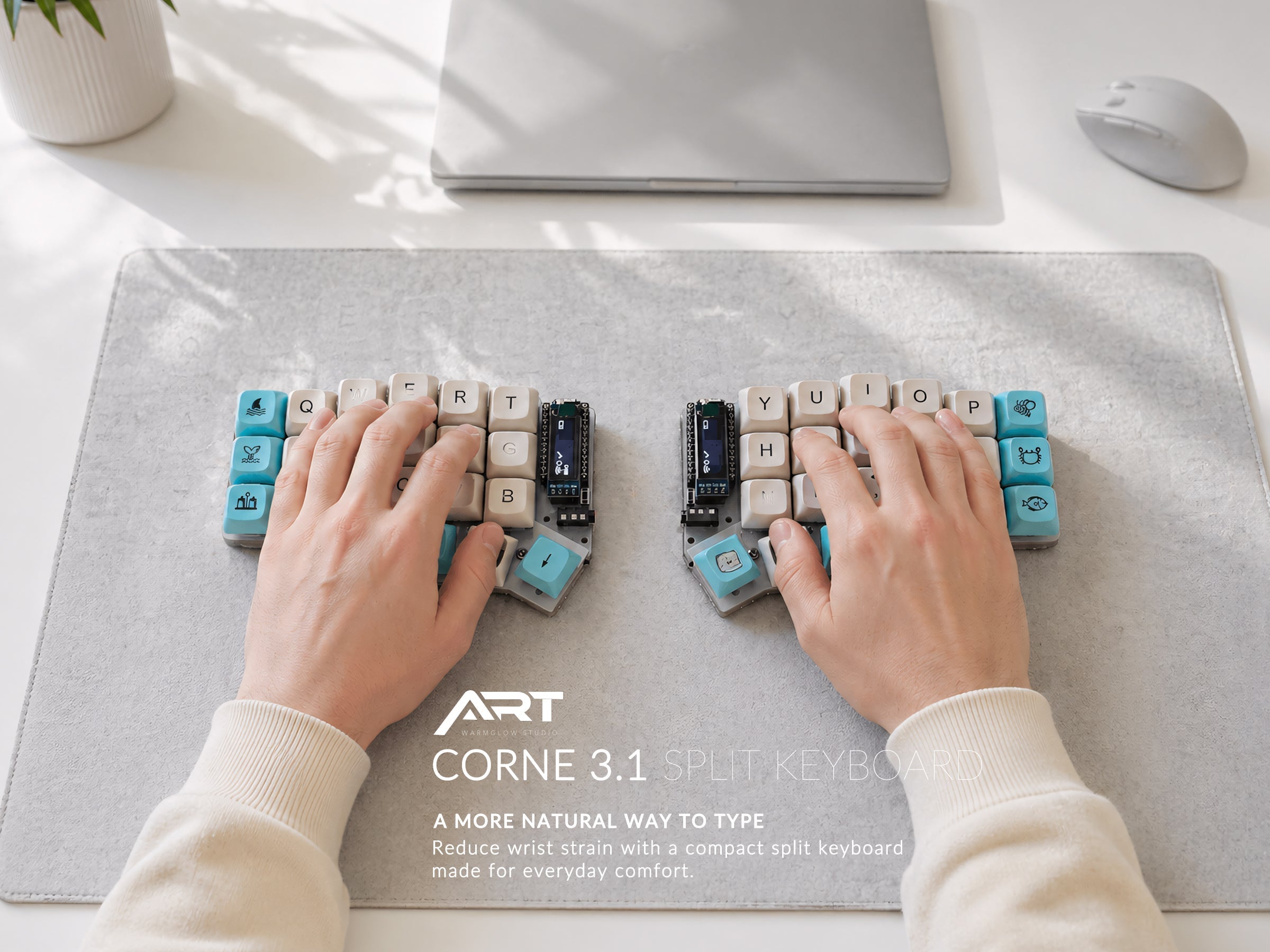
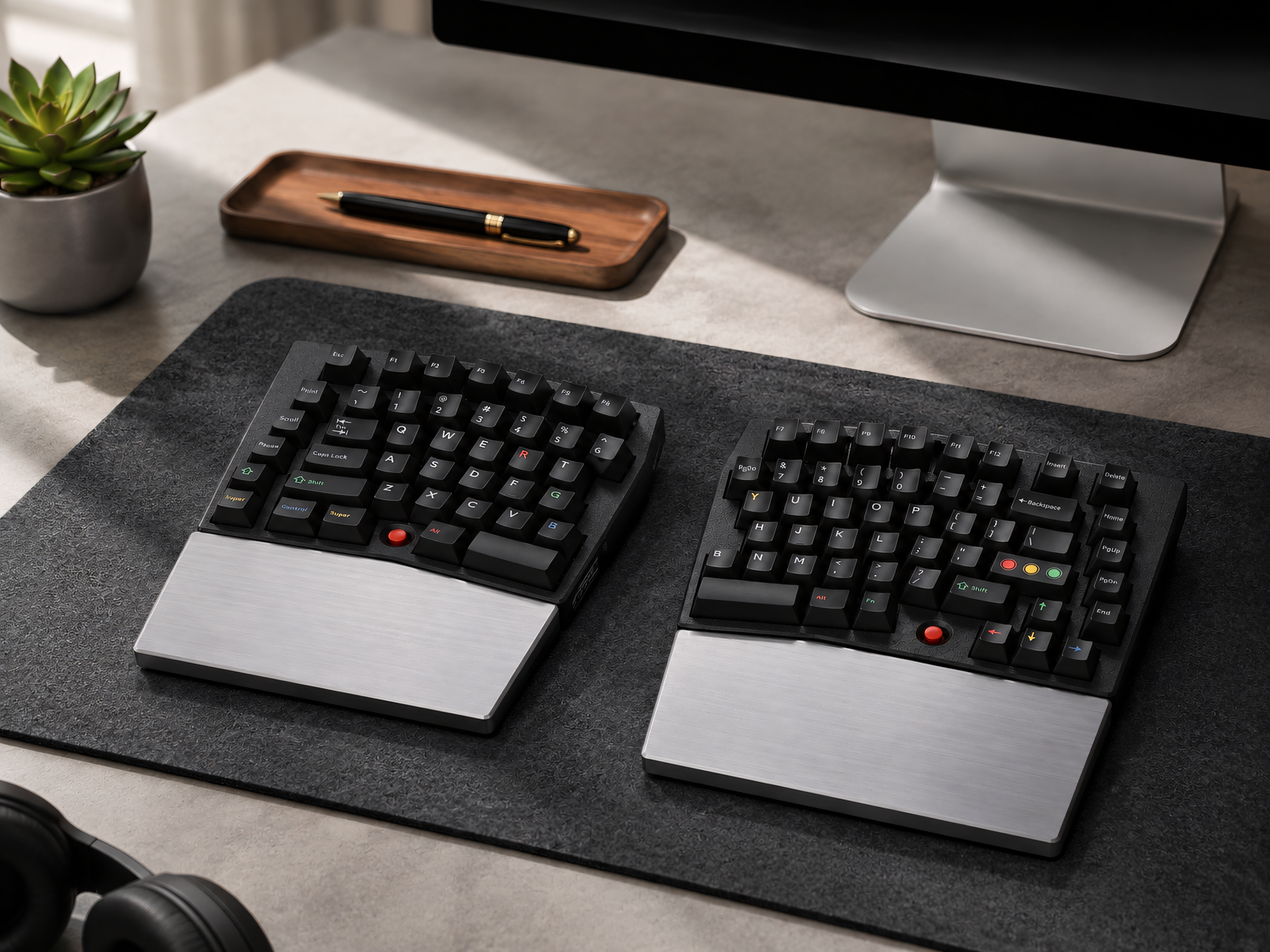
At Artkeeb, all trackball split keyboards ship fully assembled and tested, with the trackball calibrated and firmware preloaded. Whether you prefer a wired QMK/VIA setup or a wireless ZMK configuration, both options are available and ready to use from day one.

Leave a comment
This site is protected by hCaptcha and the hCaptcha Privacy Policy and Terms of Service apply.