How to Fix Wrist Pain from Typing: The Root Cause and the Real Fix
If you've developed wrist pain from typing, you've probably already tried the standard advice: take breaks, stretch, use a wrist rest. These things help at the margins. They don't fix the underlying problem.
The underlying problem is geometry. Your keyboard forces your hands into a position that creates chronic strain over thousands of hours of use. Until you change the geometry, you're managing symptoms rather than addressing the cause.
This guide covers what's actually happening when you type on a standard keyboard, why conventional advice only partially works, and what changes make a meaningful long-term difference.
What's Actually Causing the Pain
Wrist pain from typing is rarely caused by typing itself. It's caused by the sustained posture your keyboard requires.
A standard keyboard is roughly 45cm wide. To use it, your hands come together toward the center of your body — closer than your shoulders, closer than your elbows. This creates three biomechanical problems that accumulate over time:
Ulnar deviation: Your wrists bend outward (toward the pinky side) to angle your fingers toward the center of the keyboard. Sustained ulnar deviation creates compression on the tendons and nerves running through the wrist.
Pronation: Your forearms rotate so your palms face down toward the keyboard. Full pronation is a natural position for short periods. Sustained pronation for hours tightens the muscles of the forearm and reduces blood flow to the hands.
Forward shoulder position: Reaching toward a keyboard that's in front of and between your hands pulls both shoulders forward. Over hours, this creates tension in the upper back, neck, and the muscles that connect to the shoulder and arm.
These three things happen simultaneously and reinforce each other. Wrist pain is usually the first symptom, but neck pain, shoulder pain, and upper back tension are often part of the same pattern.
Why Standard Advice Only Partially Works
Wrist rests reduce ulnar deviation during pauses but don't change your typing posture. Most ergonomists recommend keeping wrists off the rest while actively typing — using a wrist rest while typing can actually increase wrist pressure.
Typing breaks interrupt the accumulation of strain but don't reduce the strain per hour. If your keyboard geometry is causing 10 units of strain per hour, taking a break every hour reduces your total accumulation — but each hour of typing still causes 10 units.
Stretching addresses muscle tightness that develops from sustained posture. It's useful maintenance but doesn't prevent the tightness from recurring.
Ergonomic mice reduce strain from mouse use but don't affect keyboard posture.
None of these interventions change the fundamental geometry problem. They reduce the severity or pace of accumulation. They don't stop it.
What Actually Changes the Geometry
Step 1: Separate Your Hands
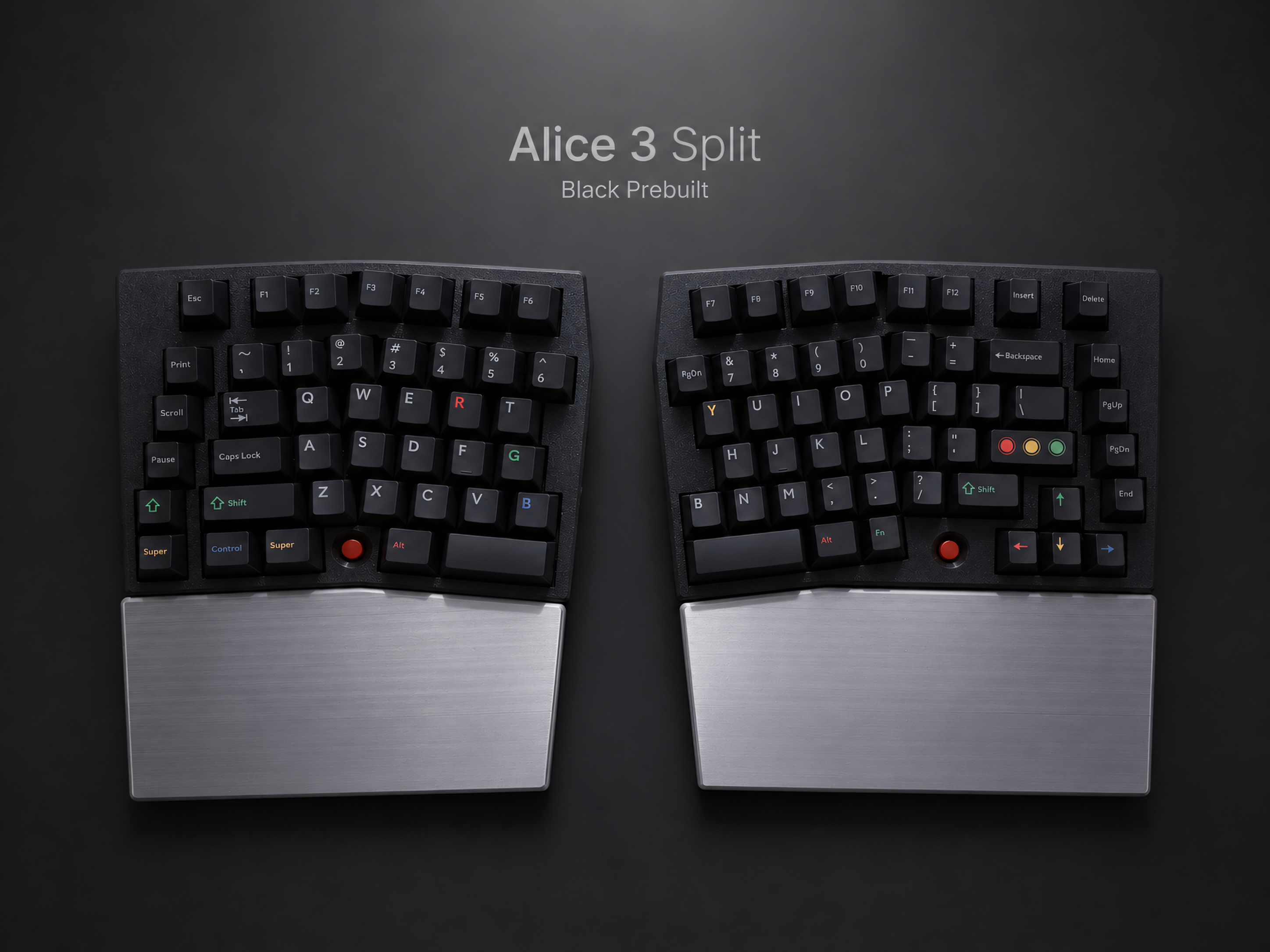
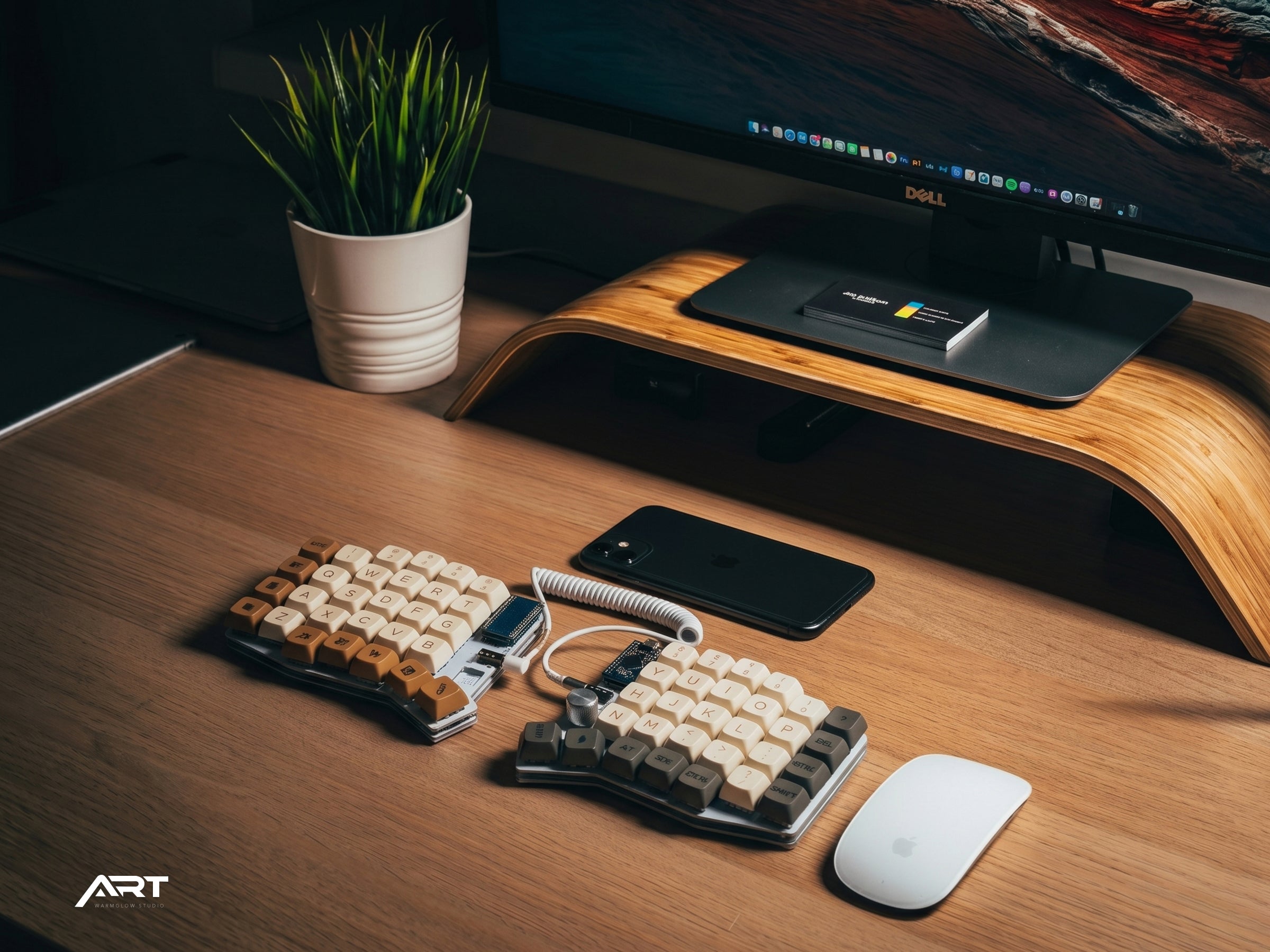
The most impactful single change you can make is using a split keyboard. A split keyboard allows each half to be positioned at exactly shoulder width — eliminating the inward hand angle that causes ulnar deviation.
When your hands are at shoulder width, your wrists can stay straight. The ulnar deviation disappears. For many people, this change alone produces noticeable improvement within two to three weeks.
Split keyboards also naturally reduce pronation because the two halves can be angled (tented) slightly upward, rotating the hands to a more neutral position between fully pronated and fully supinated.
Step 2: Tent the Keyboard
Tenting means angling each keyboard half so the inner edge is higher than the outer edge — like a tent shape when viewed from the front. This reduces pronation by rotating the forearms toward a more neutral handshake position.
Most split keyboards support some degree of tenting through included stands or aftermarket accessories. Even a small tent angle (5–10 degrees) produces a meaningful reduction in forearm muscle tension.
Step 3: Eliminate Mouse Reach
Repeated lateral reaching for a mouse is a significant contributor to right shoulder and forearm strain in most desk workers. Every reach takes your right arm out of its neutral position and returns it — hundreds of times per day.
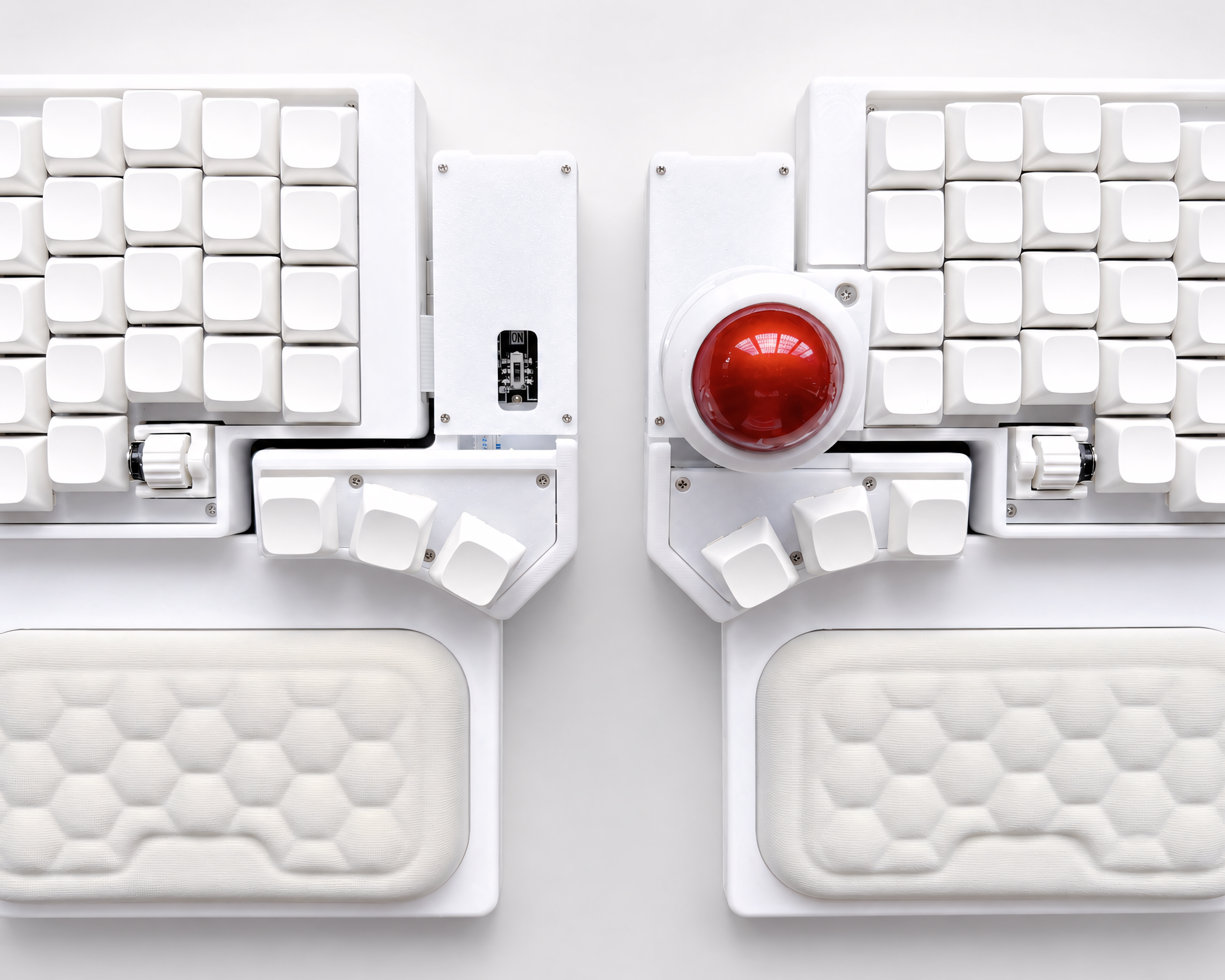
A split keyboard with a built-in trackball eliminates this reach entirely. The trackball sits at the thumb cluster; your hand never leaves the keyboard position to control the cursor. For programmers and knowledge workers who switch frequently between keyboard and mouse, this can be as significant an improvement as the split layout itself.
Step 4: Address Keyboard Height and Monitor Position
Even a perfect keyboard doesn't help if it's too high. Your keyboard should be positioned so your elbows are at roughly 90 degrees and your forearms are roughly parallel to the floor when typing. Most standard desks are too high for keyboard use without a negative-tilt tray or a lower desk.
Your monitor should be at eye level or slightly below, directly in front of you — not angled to the side. A monitor that requires neck rotation or downward/upward gaze contributes to the neck and shoulder tension that accompanies wrist strain.
The Adjustment Period for a Split Keyboard
Switching to a split keyboard involves a real adjustment. Knowing what to expect helps you push through it rather than concluding the keyboard doesn't work.
Days 1–3: Typing feels slow and awkward. You'll hit wrong keys frequently, especially on the outer columns. This is normal — your muscle memory is calibrated for a standard staggered layout.
Days 4–14: Speed gradually returns. You start to feel where the keys are without looking. The new hand position begins to feel less strange.
Weeks 3–4: Most users reach close to their original typing speed. The split position starts to feel normal. Returning to a standard keyboard begins to feel uncomfortable.
Month 2 onward: The new geometry feels natural. Physical symptoms typically improve during this period as the chronic strain patterns begin to resolve.
The most important thing during adjustment is to commit fully. Switching back to a standard keyboard when things feel slow resets your muscle memory and extends the adjustment significantly.
When to See a Doctor
Keyboard ergonomics can prevent and reduce repetitive strain injuries, but they're not a substitute for medical evaluation if you have significant symptoms.
See a doctor if:
- You have numbness or tingling in your fingers, especially at night
- Pain is sharp, severe, or worsening despite rest
- You have pain that extends up the forearm toward the elbow
- Symptoms have been present for more than a few weeks without improvement
Carpal tunnel syndrome, tendinitis, and other repetitive strain conditions respond better to treatment when caught early. An ergonomic keyboard is a useful part of recovery and prevention, but not a replacement for diagnosis if something is already wrong.
A Practical Starting Point
If you're experiencing wrist pain from typing and want to address the root cause, the sequence that produces the most improvement for most people:
- Switch to a split keyboard — this addresses ulnar deviation, the primary mechanical cause of wrist strain from keyboard use
- Add tenting — reduces forearm pronation, which compounds wrist strain
- Eliminate mouse reach — if you switch frequently between keyboard and mouse, consider a split keyboard with a built-in trackball
- Check keyboard height — if your elbows are above 90 degrees when typing, your keyboard is too high
- Check monitor position — neck tension and wrist pain often travel together; fixing one without the other produces incomplete results
The goal is to remove the sustained biomechanical stress, not to manage the symptoms it produces.

Leave a comment
This site is protected by hCaptcha and the hCaptcha Privacy Policy and Terms of Service apply.