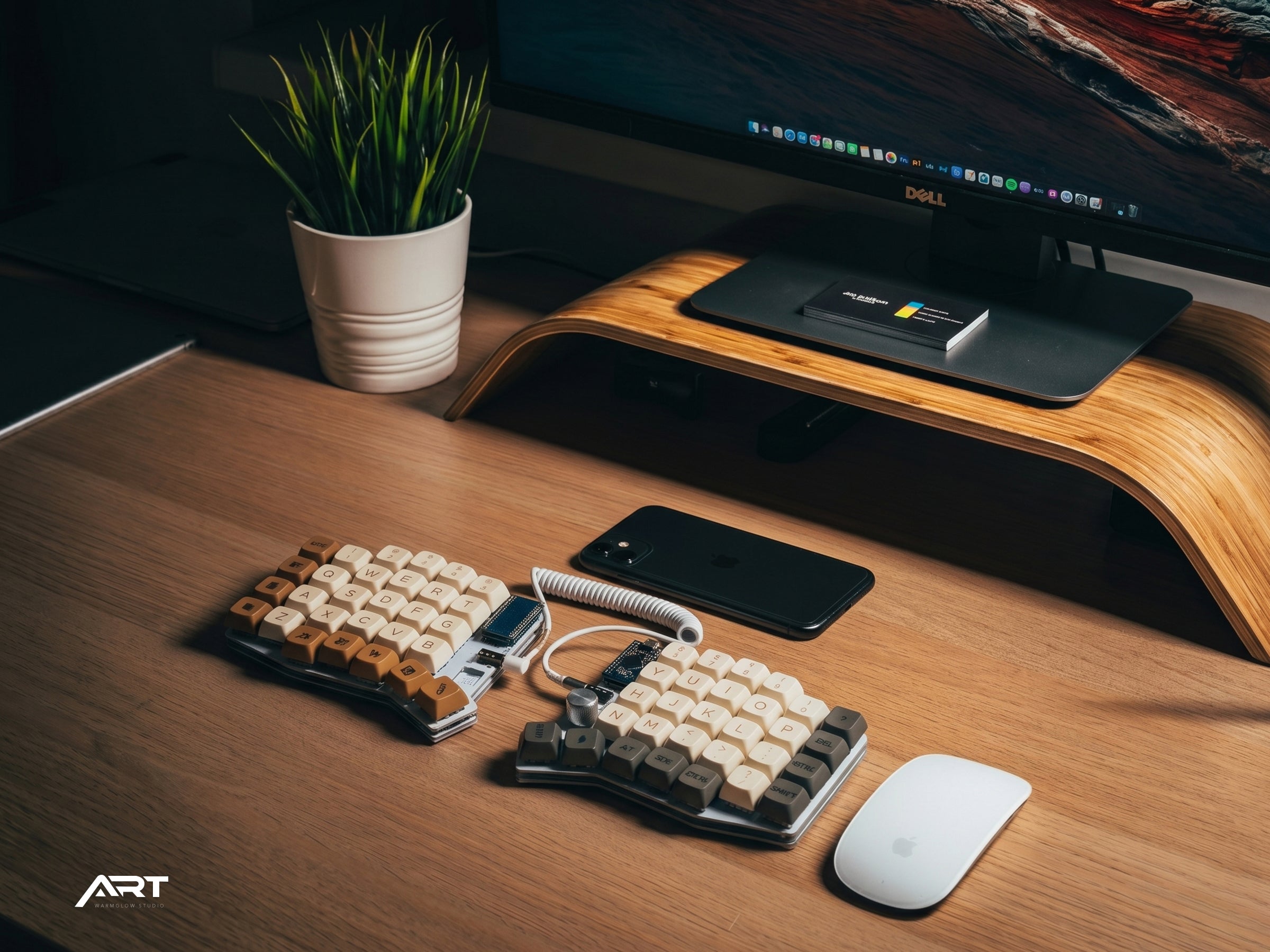
Split Keyboard vs Regular Keyboard: Which Is Better for All-Day Typing?
If you type for a living, the keyboard you use matters more than most people realize. A standard keyboard is designed to fit into a box, not to fit your body. A split keyboard is designed the other way around.
This comparison covers the real differences between split and regular keyboards — ergonomics, typing speed, learning curve, cost, and who each one is right for.
What Is a Split Keyboard?
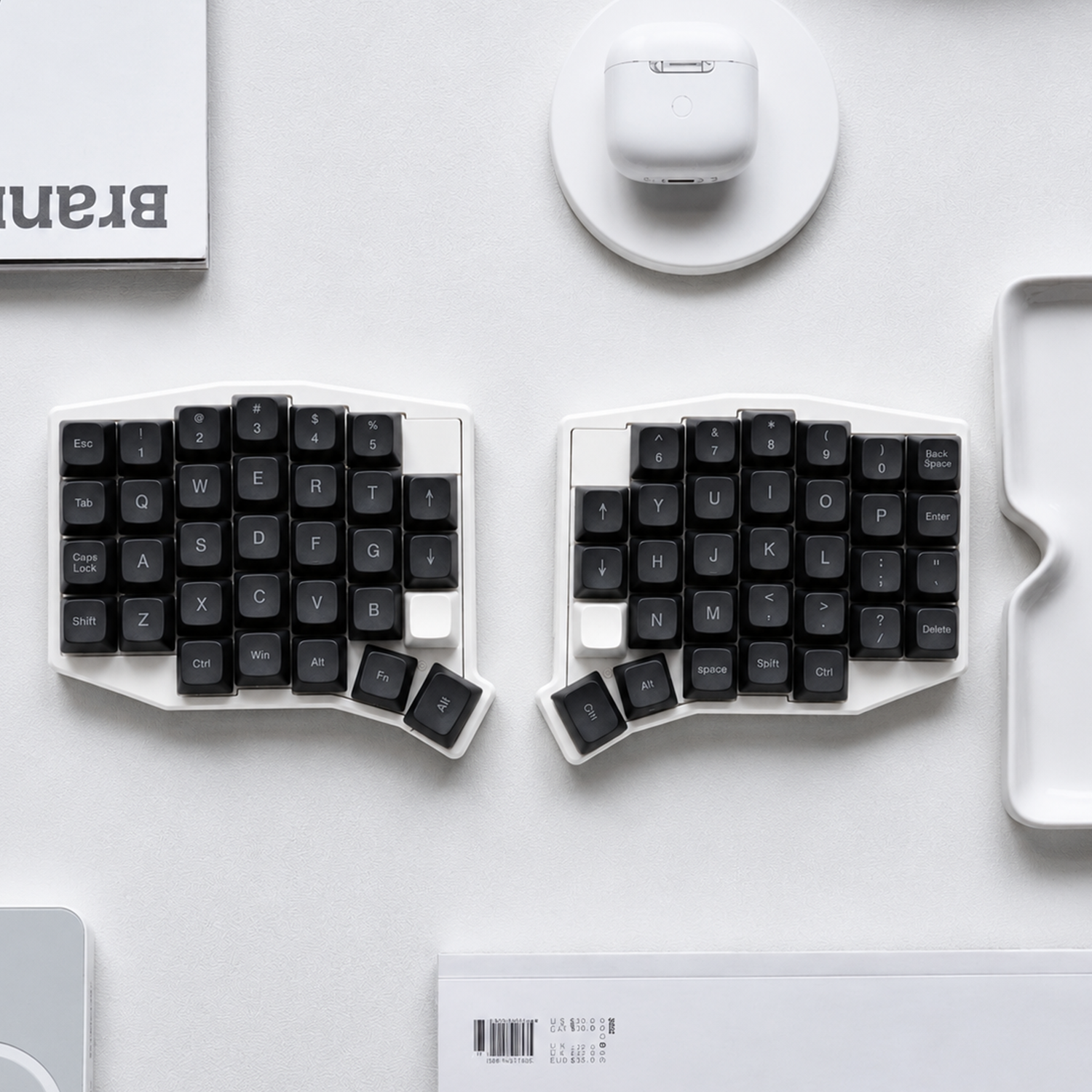
A split keyboard divides into two independent halves. Instead of one connected board that positions your hands close together, each half sits where your hands naturally want to rest — at shoulder width, with your arms relaxed and your wrists straight.
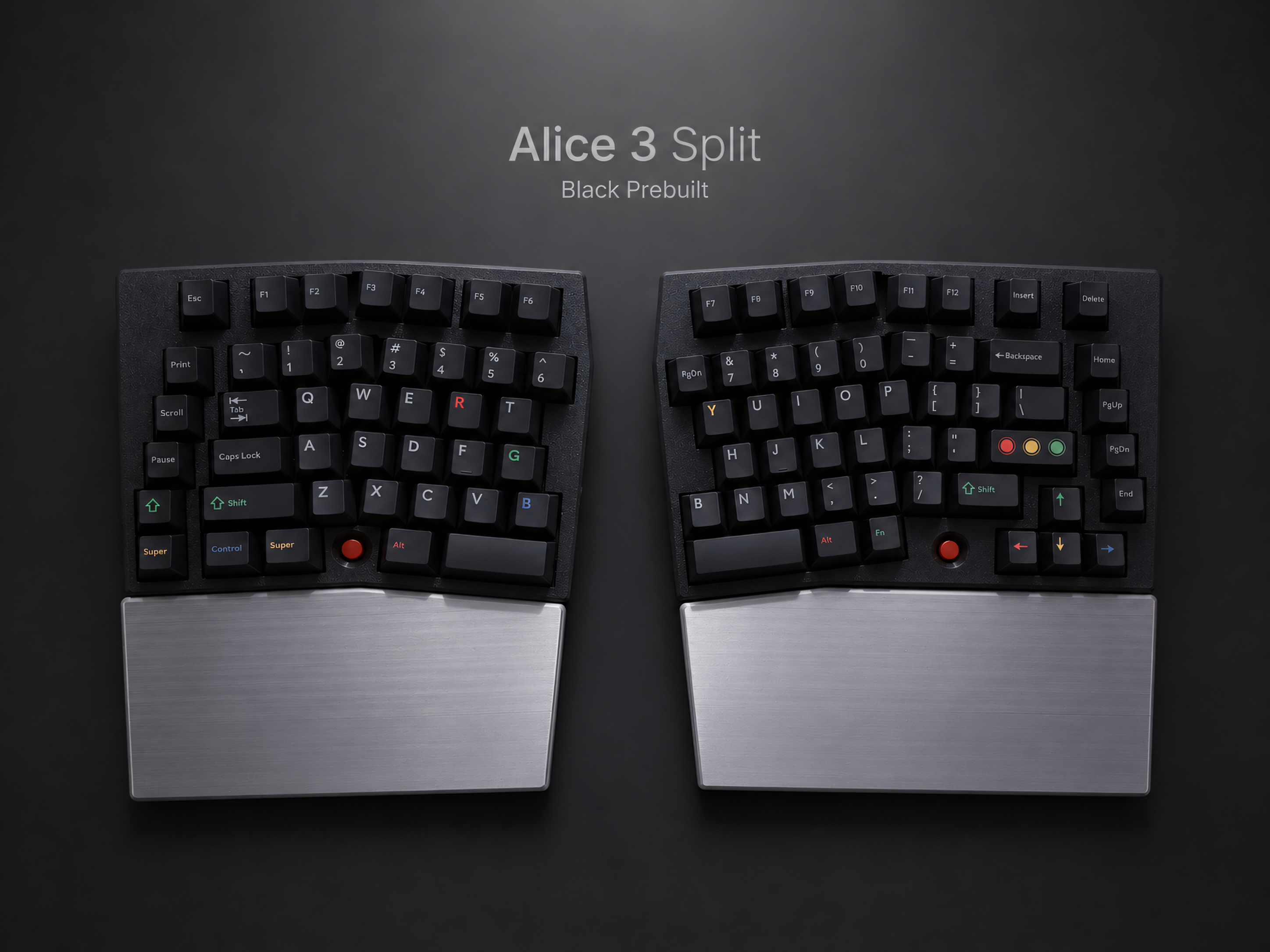
Some split keyboards are two physically separate pieces connected by a cable or wireless connection. Others are one-piece designs with a split angle but no physical separation (sometimes called "ergo" or "Alice" layouts). True two-piece split keyboards offer more positional flexibility; angled one-piece designs offer a gentler transition from a standard layout.
Ergonomics: The Core Difference
This is where split keyboards have an undeniable advantage.
Wrist position: A standard keyboard forces ulnar deviation — your wrists bend outward so your fingers can reach the centrally-positioned keys. Sustained ulnar deviation creates compression on the wrist tendons and nerves. A split keyboard at shoulder width eliminates this bend entirely.
Shoulder position: Reaching toward a narrow keyboard pulls both shoulders forward and inward. Over hours, this creates tension in the upper back, neck, and the muscles connecting to the arms. A split keyboard lets your shoulders stay open and relaxed.
Forearm rotation: Standard keyboards require full forearm pronation (palms facing down). Split keyboards, especially when tented slightly, allow a more neutral forearm position — closer to a natural handshake angle.
For someone who types two hours a day, these differences are minor. For someone typing six to eight hours a day, the accumulated strain from poor keyboard geometry is one of the most common causes of wrist pain, shoulder tension, and repetitive strain injuries that develop over years of desk work.
Typing Speed: What to Expect
Short term: Switching to a split keyboard causes a temporary speed reduction. Most users drop 20–40% in typing speed during the first week. This is normal and expected — your muscle memory is calibrated for a standard keyboard, and the new layout requires recalibration.
Medium term: Most users return to close to their original typing speed within two to three weeks of daily use. Users who touch type (without looking at keys) typically adjust faster than those who look at the keyboard occasionally.
Long term: Many experienced split keyboard users report typing speeds equal to or faster than their previous speed on a standard keyboard. The columnar stagger layout used by most split keyboards is mechanically more efficient — your fingers move up and down rather than diagonally, which reduces total finger travel.
The key variable is commitment during the adjustment period. Users who switch back to a standard keyboard when things feel slow significantly extend their adjustment time.
Layout: Columnar Stagger vs Row Stagger
Standard keyboards use a row stagger layout — the offset between rows is a design inherited from mechanical typewriters where the offset was required to fit the key mechanisms, not for ergonomic reasons. This layout has no ergonomic benefit.
Most split keyboards use a columnar stagger — keys aligned in straight vertical columns. This matches the natural up-and-down movement of your fingers, reducing lateral reach and making key positions more consistent and predictable.
The columnar stagger is the primary source of the initial adjustment difficulty. Keys you've typed the same way for years are now in subtly different positions relative to your home row. The outer column keys (Q, A, Z, P, semicolons, slash) typically take the longest to adjust to.
One-piece Alice-layout split keyboards use a staggered layout with a split angle — offering ergonomic improvement without the columnar stagger adjustment. These are the most accessible entry point for users who want ergonomic benefits without a full layout relearning.
Key Count and Layout Options
Standard keyboards typically have 100+ keys. Split keyboards range from 34 keys (minimalist layouts) to 111+ keys (full layout with numpad).
Compact split keyboards (40–58 keys): Use programmable layers to access all necessary keys. Require learning which layer contains which key, but dramatically reduce hand travel and desk footprint. Examples: Corne (42 keys), Sofle V2 and Lily58 (58 keys each).
Full layout split keyboards (80–111 keys): Keep all keys accessible without layers. Easiest transition from a standard keyboard. Example: Alice 3 (111 keys with numpad).
Alice-style split keyboards: Standard row stagger with a split angle. Best for users who want ergonomic improvement without learning a new layout. Example: Alice Split Ergonomic Keyboard.
Programmability
Standard keyboards: most are plug-and-play with fixed layouts. Some gaming keyboards offer basic macro support through proprietary software.
Split keyboards with QMK/VIAL firmware: every key on every layer is remappable through a graphical interface. You can create custom layouts, assign macros, set up tap-hold behaviors (where tapping a key does one thing and holding it does another), and configure rotary encoders if present. Changes apply instantly and are stored on the keyboard — your custom layout travels with the keyboard to any computer.
For power users, programmers, and anyone with specific workflow requirements, the programmability of QMK/VIAL keyboards is a significant advantage over any standard keyboard.
Wireless Options
Standard keyboards: many consumer options are available with Bluetooth or 2.4G wireless.
Split keyboards: wireless split keyboards use either 2.4G (with VIAL remapping support) or Bluetooth ZMK (with multi-device pairing and excellent battery life). The two halves communicate wirelessly with each other in addition to connecting to the computer — a more complex wireless implementation than a single-piece keyboard, but one that works reliably on quality hardware.
Cost Comparison
Standard keyboards: $20–$300 depending on quality, switches, and features. Most office keyboards are at the low end; enthusiast mechanical keyboards span the full range.
Split keyboards: $150–$800+ for prebuilt options. The higher cost reflects custom PCB design, more complex wireless implementation, and typically lower production volumes. Entry-level split keyboards (Sofle V2, Lily58 barebone) sit at the lower end; premium trackball split keyboards with custom cases sit at the higher end.
For users who develop repetitive strain injuries from typing, the medical costs — physiotherapy, ergonomic consultations, potential time off work — typically exceed the cost of a quality ergonomic keyboard. For users who type heavily and want to avoid those costs proactively, the investment is straightforward to justify.
Side-by-Side Summary
| Regular Keyboard | Split Keyboard | |
|---|---|---|
| Wrist position | Ulnar deviation | Neutral |
| Shoulder position | Forward/inward | Open/relaxed |
| Typing speed (initial) | Full speed | Temporary reduction |
| Typing speed (long term) | Same | Equal or faster |
| Layout | Row stagger | Columnar stagger (most models) |
| Key count | 60–110+ | 34–111+ |
| Programmability | Limited | Full (QMK/VIAL) |
| Wireless | Common | Available (2.4G or Bluetooth) |
| Price | $20–$300 | $150–$800+ |
| Adjustment period | None | 1–3 weeks |
Who Should Use a Split Keyboard
Strong candidates:
- People who type more than 4 hours per day
- Anyone experiencing wrist, shoulder, or neck strain from typing
- Programmers and developers who type heavily and switch frequently between keyboard and mouse
- Users who want full keyboard customization through QMK/VIAL
Better served by a standard keyboard:
- Occasional typists who aren't experiencing any strain
- Users who share a keyboard between multiple people
- Anyone unwilling to invest 2–3 weeks in adjustment
The Bottom Line
A split keyboard is not a marginal upgrade. For heavy typists, it addresses the root cause of the most common repetitive strain problems rather than managing symptoms. The adjustment period is real and requires commitment.
For users who type all day, the question isn't really whether a split keyboard is better — the ergonomic advantage is clear. The question is whether the adjustment period and cost make sense given your current situation.
If you're already experiencing pain: the sooner you make the change, the better. Repetitive strain conditions improve faster when the source of stress is removed early.
If you're not yet experiencing pain but type heavily: a split keyboard is the most effective preventive measure available.

Leave a comment
This site is protected by hCaptcha and the hCaptcha Privacy Policy and Terms of Service apply.