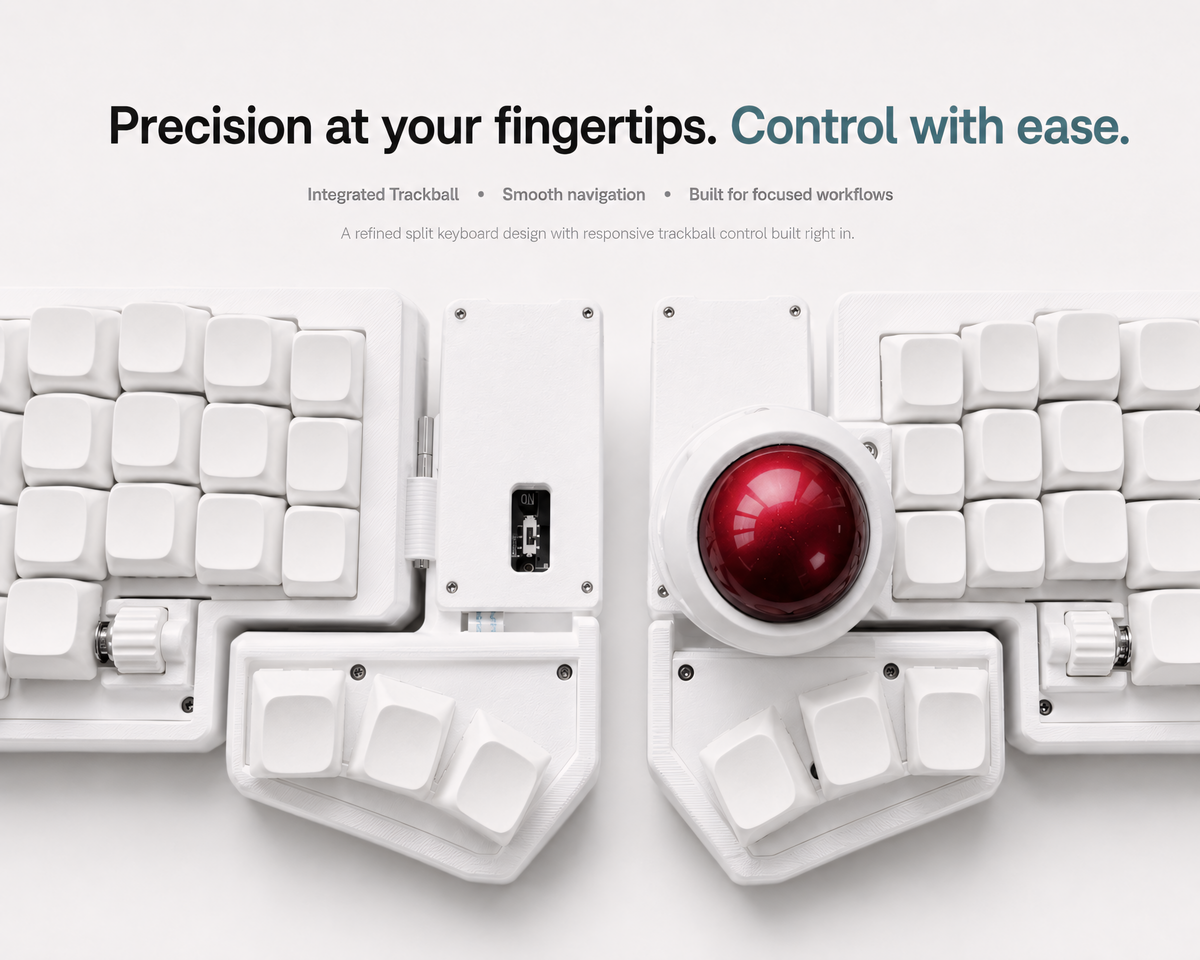
Trackball Split Keyboard for Mac, Windows, and Linux: Compatibility Guide
Most modern trackball split keyboards can work with macOS, Windows, and Linux without a special driver. The important differences are connection method, firmware, modifier-key placement, Bluetooth behavior, and the tools used to remap keys.
A wired QMK keyboard usually appears as a standard USB keyboard and pointing device. A wireless ZMK model typically connects through Bluetooth and stores several host profiles. Both can be cross-platform, but the setup experience is not identical.
Quick compatibility table
| Feature | macOS | Windows | Linux |
|---|---|---|---|
| Standard USB keyboard input | Yes | Yes | Yes |
| Standard pointer input | Yes | Yes | Yes |
| Bluetooth ZMK pairing | Yes | Yes | Yes, adapter-dependent |
| QMK/VIA remapping | Browser/app support varies | Generally straightforward | Browser permissions may be needed |
| Command/Control mapping | Usually remapped | Standard Control/Windows keys | Desktop dependent |
Using a trackball split keyboard with macOS
macOS normally recognizes standard keyboard and pointer reports automatically. The main adjustment is modifier placement. Many PC-oriented keymaps place Control, Windows, and Alt where Mac users expect Control, Option, and Command.
You can solve this in the operating system or in the keyboard firmware. Firmware remapping is better when you want the same physical key positions on every Mac. Operating-system remapping is convenient when the keyboard is shared with Windows and you want each computer to interpret the same keys differently.
For wireless models, pair the keyboard from Bluetooth settings and confirm that the active ZMK profile is not already bonded to another device. If reconnection fails after removing the keyboard from macOS, clear the corresponding Bluetooth profile on the keyboard before pairing again.
Using one with Windows
Windows supports standard USB and Bluetooth keyboard and pointer input without a custom driver. Wired QMK/VIA models are usually the simplest: connect USB, confirm keyboard and trackball input, and then open the supported remapping tool if changes are needed.
For ZMK, use a dedicated Bluetooth profile for the Windows computer. If the two keyboard halves communicate wirelessly, allow both sides to charge before first use. A low battery on one half can look like a pairing or keymap problem.
Windows shortcuts often depend on Control, Alt, and the Windows key, so review the default thumb-key assignments. Compact layouts may place function keys, arrows, and navigation commands on layers rather than dedicated keys.
Using one with Linux
Linux generally recognizes standard USB HID keyboard and pointer input. Bluetooth reliability depends more heavily on the computer’s adapter, kernel, desktop environment, and power-management settings.
If a wireless keyboard pairs but does not reconnect reliably, test the keyboard close to the computer, charge both halves, remove the old bond, and pair again on a clean profile. On laptops with aggressive Bluetooth power saving, system settings may need adjustment.
Browser-based remapping tools may require permission to access the keyboard. Some Linux distributions also require udev rules for direct HID access. Follow the official instructions for the firmware tool you are using rather than granting broad device permissions unnecessarily.
QMK/VIA versus ZMK across systems
Choose wired QMK/VIA when you want a fixed workstation, immediate USB connectivity, and mature live remapping. It avoids Bluetooth pairing and battery management.
Choose wireless ZMK when you move between devices, want a cable-free split setup, or need multiple Bluetooth profiles. ZMK is designed for low-power keyboards, but advanced changes can require a more deliberate configuration workflow.
The keyboard and trackball should present standard input reports on all three operating systems. Special behaviors—scroll layers, drag lock, sensitivity changes, macros, and application shortcuts—come from the keymap rather than the operating system alone.
Multi-device setup recommendations
- Assign one ZMK Bluetooth profile to each computer.
- Label or document the profile numbers until switching becomes familiar.
- Keep a wired charging cable available during initial setup.
- Save a copy of the original keymap before making changes.
- Change one behavior at a time and test keyboard, trackball, and both halves afterward.
Common compatibility problems
The keyboard types, but the trackball does not move
Confirm that the product firmware includes pointing-device support and that the correct firmware build is installed. Reboot the keyboard and test another computer before changing the keymap.
Modifier keys are in the wrong positions
This is usually a mapping issue, not a hardware incompatibility. Remap Command/Windows, Option/Alt, and Control in firmware or in the operating system.
Bluetooth pairing works once but will not reconnect
Charge both halves, select the same host profile used during pairing, and remove stale bonds from both keyboard and computer before pairing again.
The pointer is too fast or too slow
Adjust trackball sensitivity in the supported firmware configuration. Make small changes and test normal browsing, text selection, and multi-monitor movement.
Compatible Artkeeb options
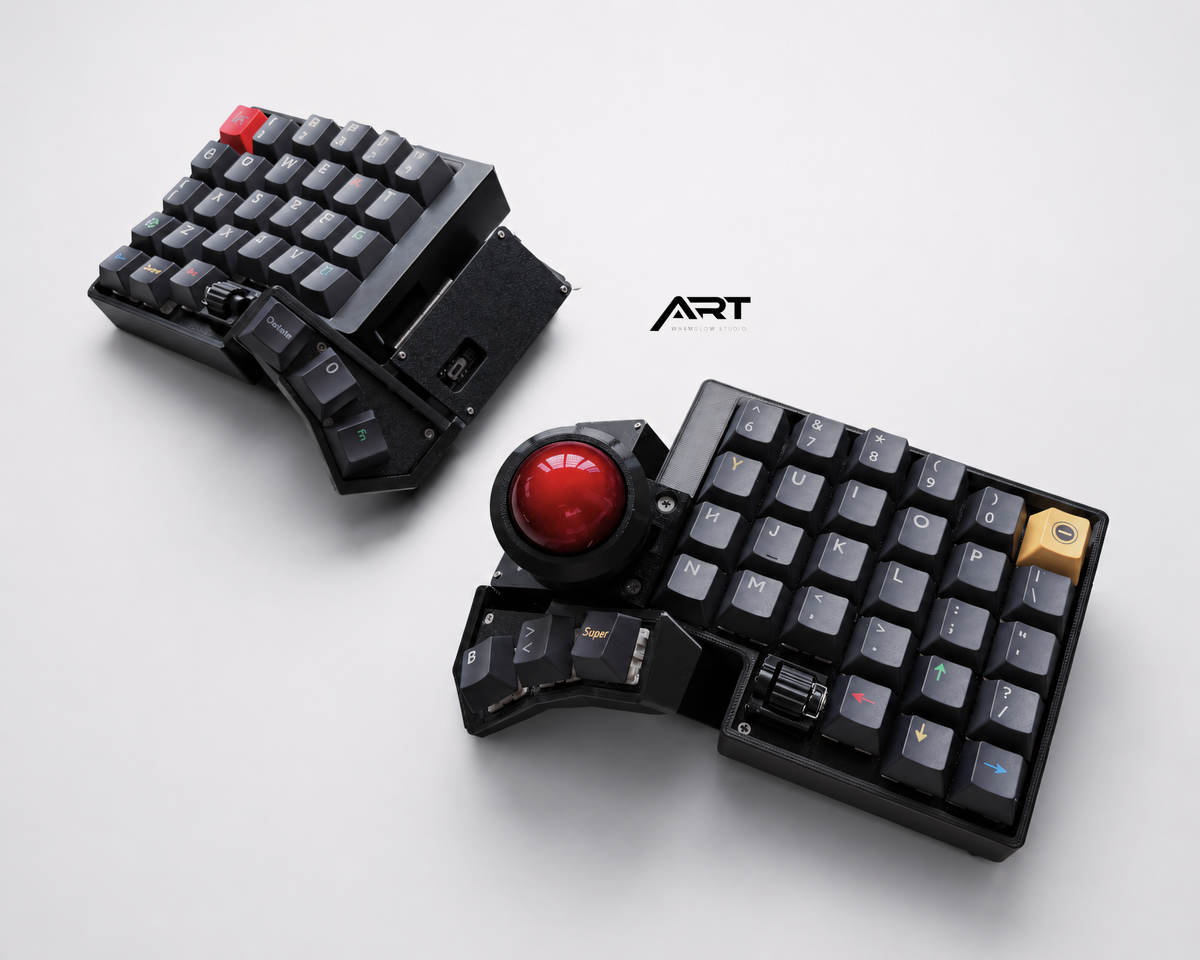
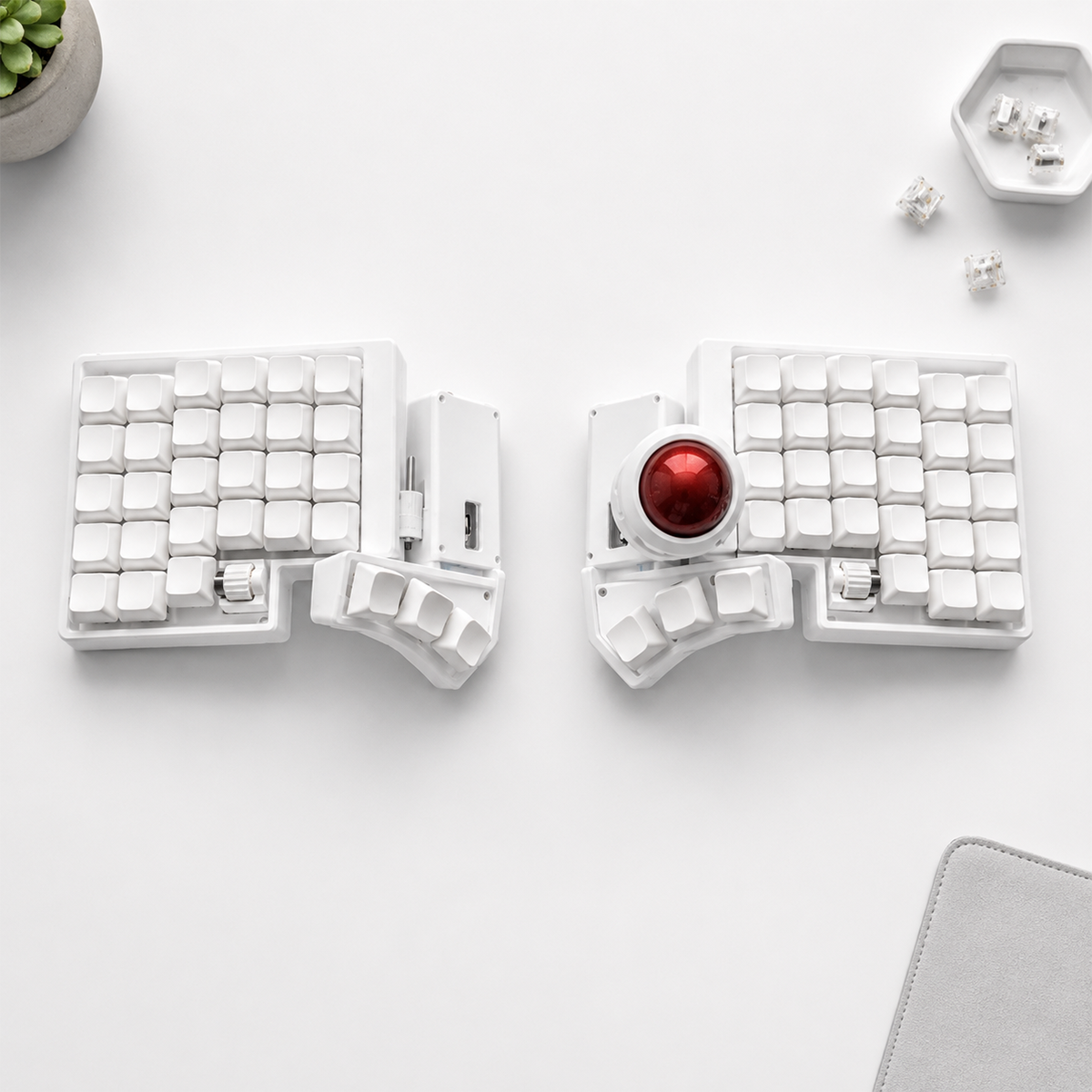
The Trackball Split Keyboard with wired QMK/VIA or wireless ZMK lets buyers choose the connection style that fits their workstation. The Wireless ZMK 3x6 Compact Trackball Keyboard is intended for users who want a minimal cable-free setup.
Compare all layouts in the Artkeeb trackball split keyboard collection.
Frequently asked questions
Do I need a driver for the built-in trackball?
Normally no. Standard keyboard and pointer functions use operating-system HID support. Remapping tools and advanced firmware workflows are separate from basic input.
Can one wireless keyboard connect to multiple operating systems?
Yes when the ZMK keymap provides multiple Bluetooth profiles. Each computer should use its own profile to avoid repeated re-pairing.
Will Mac keycaps change how the keyboard works?
No. Keycaps are labels and physical shapes. The firmware or operating system determines whether a key acts as Command, Option, Control, or another modifier.
Before purchasing, verify the selected configuration, included parts, firmware, and support information on the individual product page.

Leave a comment
This site is protected by hCaptcha and the hCaptcha Privacy Policy and Terms of Service apply.